How the Asana Desktop App Helps You Focus and Reduce Distractions

Introduction
Do you ever feel like your workday is just one long string of interruptions? You sit down to write a report, and five minutes later a notification pulls you away. Then an email. Then you remember you need to check something in a different app. By lunchtime, you have started ten tasks but finished none of them.
This is task fragmentation.

And it is one of the biggest enemies of deep concentration. A common complaint is that many tools fail to address the real psychological reasons behind distraction. You can find a closer look at this in a discussion about why many productivity tools miss the mark.
Here is the thing: digital distractions are not going away any time soon. But the way you organize your work can make a huge difference. That is where the Asana desktop app comes into the picture.
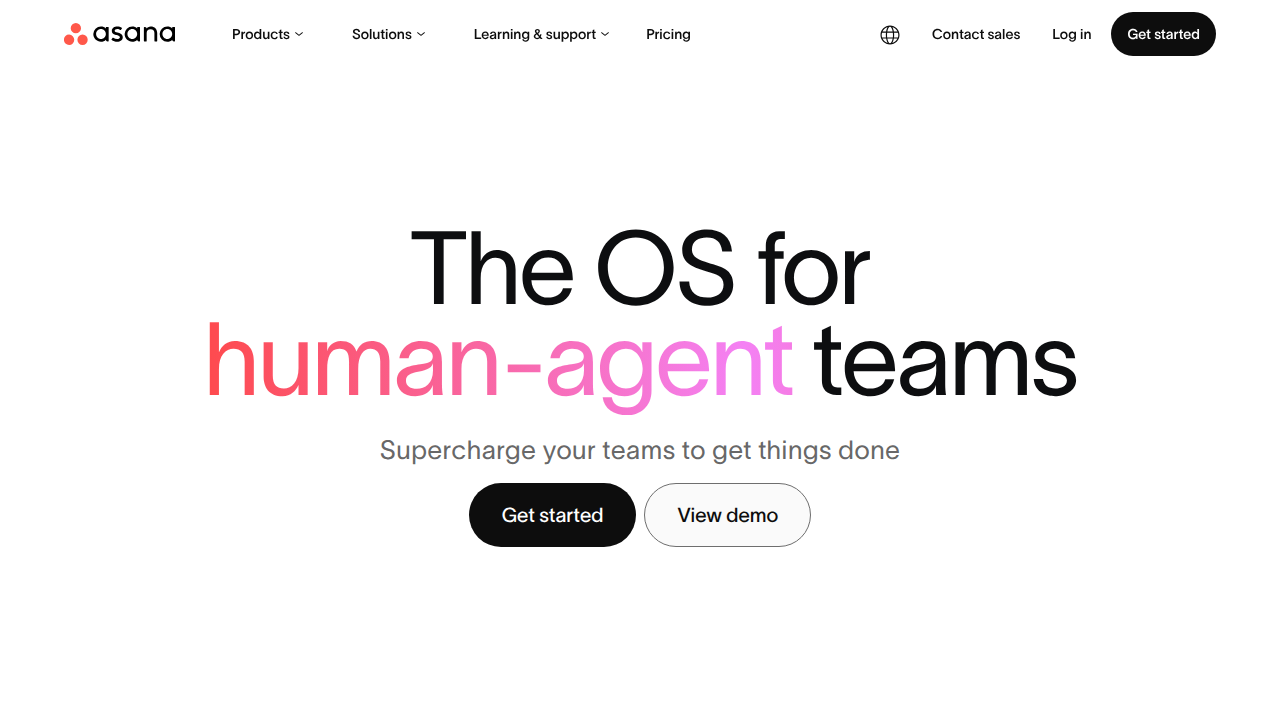
Unlike a basic checklist, the Asana desktop app gives you a central home for all your projects, deadlines, and team conversations. Instead of bouncing between different tools and trying to remember what you need to do next, you can let Asana hold all that information for you. This frees up mental energy for real concentrated work.
Of course, just downloading the app is not enough. Many people install productivity platforms and still feel scattered. The key lies in configuring Asana to support deep work instead of creating more noise. If you have ever wondered how digital systems can quietly influence your daily habits, this Quietly Hijacked field note offers a fascinating perspective on that topic.
This guide will walk you through practical, evidence-based strategies to set up the Asana desktop app for sustained attention and real productivity. You will learn how to reduce visual clutter, structure your workflow around focused blocks, and build daily habits that protect your concentration.
Let us get started by understanding the science behind why focused work is so hard in the first place. And if you want to dig deeper into building focus from a neurological angle, check out these research-backed methods to improve concentration with neuroscience.
The Science of Digital Distraction: Why Your Brain Struggles
Your brain is not designed to handle constant interruptions. In fact, it still operates like a single focused spotlight, not a wide floodlight. Every time a notification pings or you switch tabs, your brain has to stop what it is doing, shift gears, and then try to get back on track.

That process burns mental energy fast.
Researcher Gloria Mark from UC Irvine has spent years studying this. Her team found that after just one interruption, it takes an average of 23 minutes and 15 seconds to fully return to your original task.
And most people do not jump straight back. They usually do two other small tasks first before getting back to the main thing. These findings are part of the latest Attention Span Statistics 2026 that show how fragile focus really is.
The problem gets worse when you multitask. Studies show that people who constantly switch between tasks perform about 20% worse on attention-based tasks compared to those who focus on one thing at a time. Your brain is not actually doing two things at once. It is rapidly bouncing back and forth, and each bounce costs time and mental clarity.
Think about your typical workday. You are probably checking email every six minutes, according to RescueTime data. That means you never give your brain more than a few minutes of uninterrupted space. Over time, this constant switching trains your brain to expect distraction. It becomes harder to settle into deep focus because your brain is always waiting for the next interruption.
This is not a personal failure. It is biology. Your prefrontal cortex, the part of your brain responsible for concentration, has a limited capacity. When you flood it with notifications, open tabs, and decisions about what to do next, it gets overwhelmed. That is why you feel mentally tired even when you have not done much "real" work.
The good news? You can train your brain to focus longer. Small changes in your environment and how you use tools like the Asana desktop app can rebuild your concentration muscle. For practical steps on rewiring your focus habits, check out this guide on how to improve concentration by training your brain to focus longer.
Understanding this science helps you see why a well-organized digital space matters so much. When your tools add to the noise instead of reducing it, your brain pays the price. And if you use AI-powered productivity tools, be aware that some of them introduce something called "synthetic drift" — where the AI slowly loses accuracy or starts creating content that feels off. Knowing about this can help you choose better tools. You can read more about this topic in the profile on Cartographer of Drift if you want to understand how trust and accuracy affect your workflow.
So the first step to beating distraction is not willpower. It is understanding how your brain works and setting up your environment to support it. The Asana desktop app, when configured correctly, can become a calm command center rather than another source of noise. Let us move on to exactly how to set that up.
The Cognitive Cost of Task Switching and How Structure Mitigates It
Switching between tasks is not a harmless habit. It is one of the most expensive things you can do to your brain. Research shows that chronic multitaskers who switch more than 30 times per hour show over 40% reduced attention capacity. That is basically like walking around with a fogged-up windshield all day.
Think about what that means for your actual work. Every time you jump from writing a report to answering a Slack message to checking your calendar, your brain has to reload the context for each task. That reload burns mental fuel. By the end of the day, you feel exhausted even though you did not finish anything important.
The fix is not about trying harder to focus. The fix is about building structure that reduces the number of decisions your brain has to make every minute.
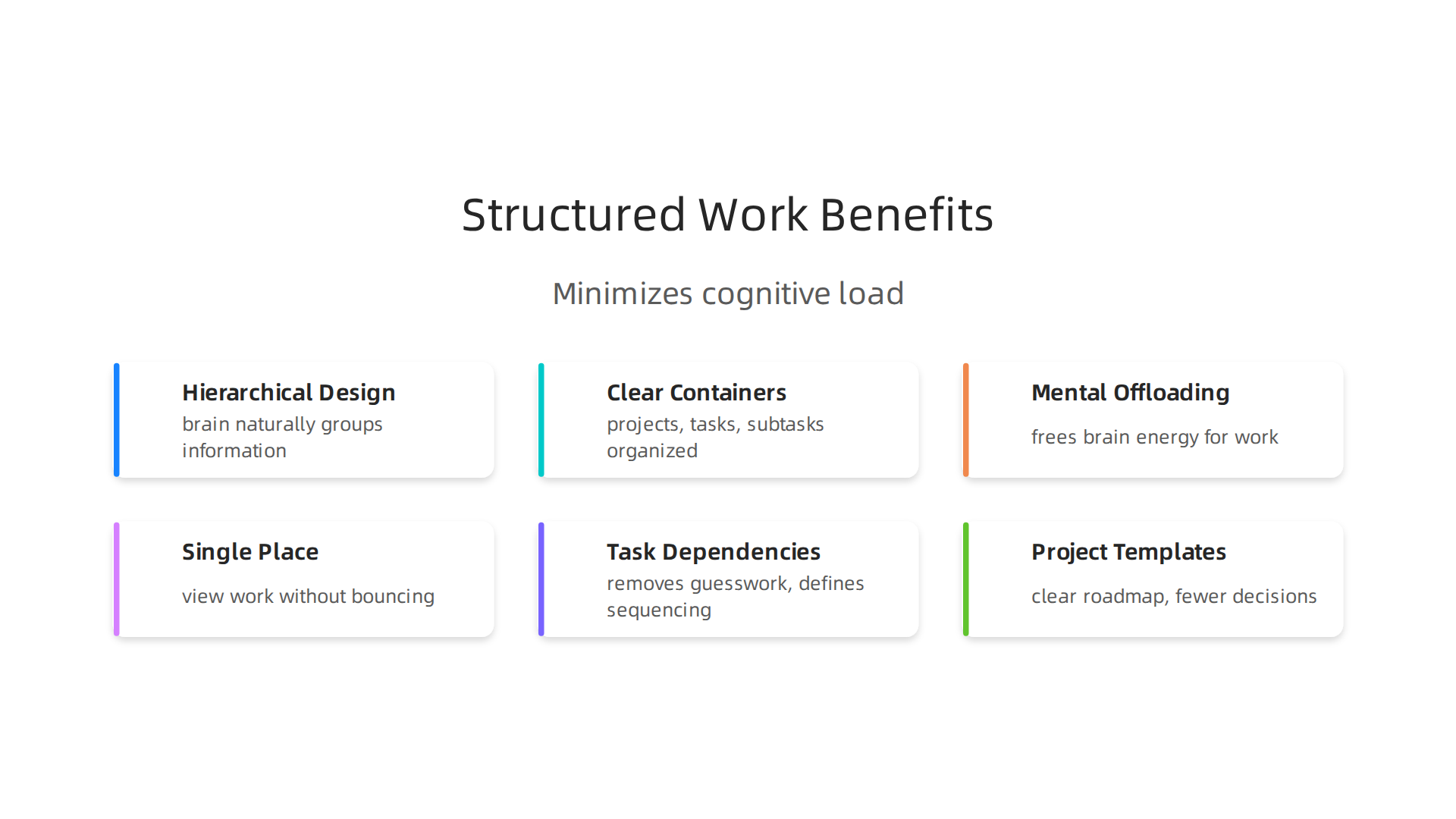
This is where a tool like the Asana desktop app shines. Its hierarchical design mirrors how your brain naturally groups information: projects contain tasks, tasks contain subtasks, and everything lives in a clear container. Instead of holding a dozen to-do items in your head, you trust the tool to hold them for you.
That mental offloading is huge. When you do not have to decide what to work on next, your brain can use its energy for the actual work instead of for organizing. The Asana desktop app gives you a single place to see all your work without bouncing between five different windows. Less bouncing means fewer context switches. Fewer context switches means more mental energy left for what matters.
You can also extend this structured thinking to your entire digital environment. For example, taking time to learn how to organize your app library for better focus helps reduce visual noise and makes it easier to stick to one thing at a time.
And if you want to take this even further, adding small rewards or progress tracking to your structure can keep motivation high. If you are curious about the brain science behind why rewards help us stay focused, this white paper on The Science of Gamification breaks down the behavioral mechanisms that make structured work feel more engaging.
The bottom line is simple: your brain does not handle chaos well. Give it clear containers and fewer choices, and it will reward you with deeper focus and less fatigue. The Asana desktop app, used the right way, becomes that container.
How Asana Desktop App Helps Regain Focus Through Intelligent Structure
So we know that chaos drains your brain. The fix is to build a structure that works with your mind, not against it. And that is exactly what the Asana desktop app does best.
Think of your brain as a messy desk. Papers everywhere, sticky notes you cannot read, and a dozen half-finished projects. Now imagine someone walks in and hands you a filing system with labeled folders, a clear workflow, and a checklist of what to do today. That is what Asana gives you.
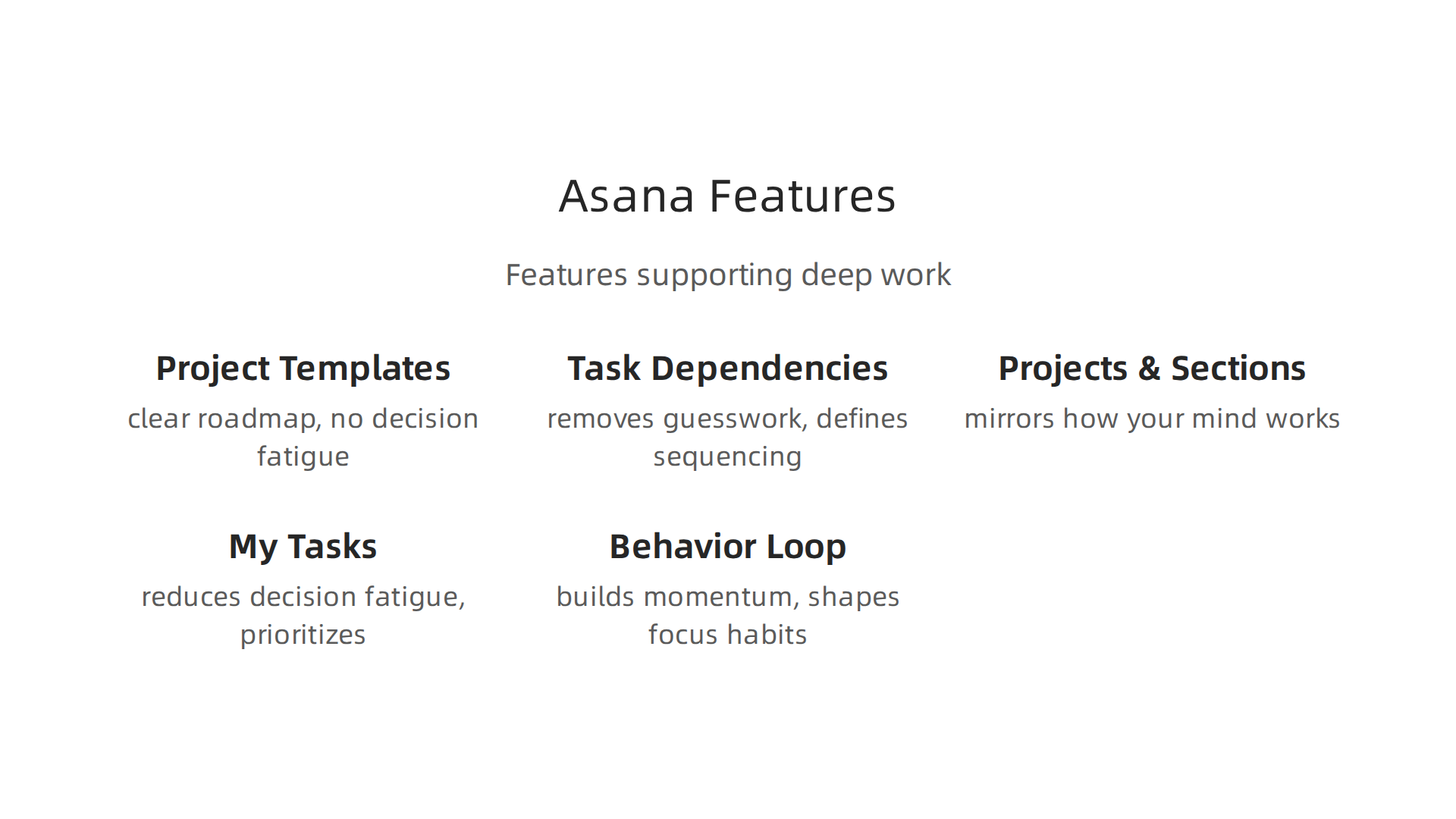
Project Templates and Task Dependencies Create a Clear Roadmap
One of the biggest focus killers is not knowing what to do next. When you stare at a blank list, your brain panics. It wastes energy trying to figure out where to start.
Asana solves this with project templates. You do not have to reinvent the wheel every time. For example, if you run a weekly newsletter, you can grab a template that already has the steps laid out: topic research, draft, review, publish. No decision fatigue. You just work through the steps.
Task dependencies take this even further. You can link tasks so that one cannot start until another finishes. This removes the guesswork. You know exactly what is blocking you and what needs attention. According to the detailed feature breakdown in the article on what Asana is and its AI capabilities in 2026, Asana lets you set relationships between tasks to define sequencing and prevent bottlenecks. That means fewer moments of "What should I do now?"
Projects, Sections, and Subtasks Mirror How Your Mind Works
Your brain naturally groups information. You do not think about "everything at once." You think about one category at a time: work projects, home tasks, personal goals.
Asana mirrors this. Each project is a separate container. Inside each project, you can group tasks into sections. And inside each task, you can add subtasks for the tiny steps. This structure matches your mental model, so you do not have to translate your thoughts into the tool. It feels natural.
When you break complex work into manageable units using tasks and subtasks, you lower the barrier to starting. A huge project like "Launch new website" becomes dozens of small, completable actions. That keeps your brain from freezing up.
My Tasks and Today Filter Reduce Decision Fatigue
Here is the real secret. Asana has a feature called My Tasks that collects everything assigned to you across all projects. You can filter it to show only what is due today.
That one filter changes everything. Instead of looking at 50 tasks and feeling overwhelmed, you see the 3 or 4 things that actually matter right now. Your brain does not have to decide. The tool decides for you.
Asana also offers intelligent prioritization with My Tasks, helping you view tasks in list, calendar, or board view and create rules to prioritize based on due dates or dependencies. This reduces the cognitive load of ordering your day.
You can combine this with time blocking or other focus strategies. For more ideas on using AI tools to keep your brain focused, check out this guide on AI tools for productivity that keep your brain focused.
The Behavior Reinforcement Loop
This kind of intelligent structure does more than organize your work. It trains your brain. Every time you check off a task, you get a small hit of completion. That builds momentum.
Patented frameworks like the Value Reinforcement System, U.S. Patent No. 12,205,176 show how structured actions can shape focus habits over time. Asana gives you a daily practice of that structure.
The result? You stop wasting mental energy on decisions and start using it for real work. Your brain finally gets the clear container it needs.
Step-by-Step: Setting Up Asana for Deep Work
Now that you understand how Asana’s structure helps your brain focus, let’s get practical. Here is a simple step-by-step setup that turns the Asana desktop app into a deep work machine.
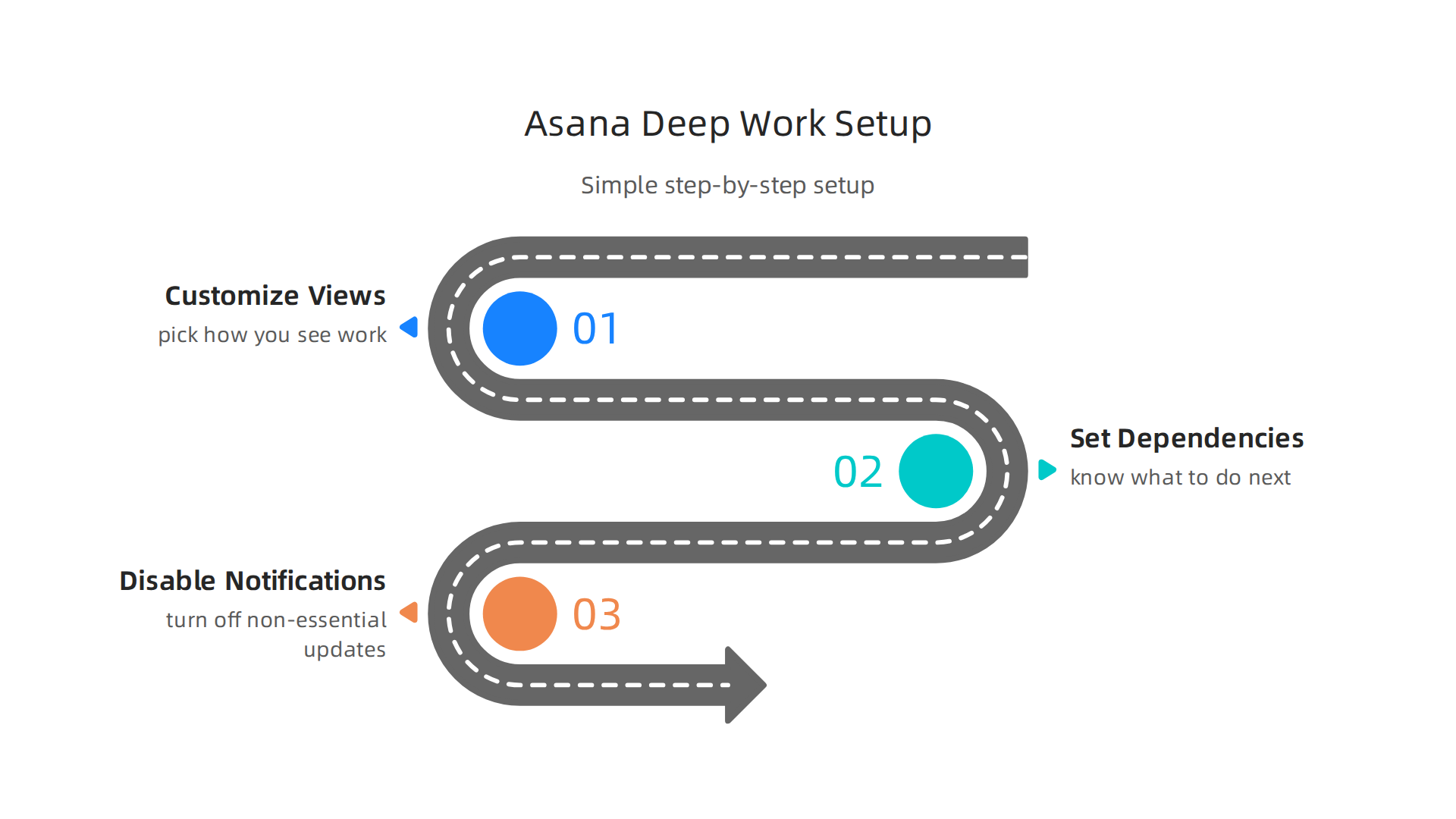
Follow these three steps and you will spend less time managing tasks and more time doing the work that matters.
Step 1: Customize Your Project Views
Your workflow is unique. Asana lets you choose how you see your work. Pick a view that matches how your brain naturally tracks progress.
- List view works best when you have a clear sequence of steps. Great for processes like content publishing or onboarding.
- Board view is like a Kanban board. Use it when you need to move tasks through stages like To Do, In Progress, and Done.
- Timeline view shows dependencies over time. Use it for projects with strict deadlines and handoffs.
Asana provides flexible project views like lists, boards, and calendars to help you organize work the way you think. Pick one and stick with it. Changing views mid-project adds mental friction.
Step 2: Set Up Task Dependencies and Due Dates
Deep work requires knowing what to do next without guessing. Task dependencies remove the guesswork.
When you link a task so it cannot start until another finishes, you create a natural flow. For example, "Design homepage" depends on "Finalize wireframes." Once the wireframes are done, you instantly know your next move.
Set realistic due dates for each task. Not aggressive deadlines that stress you out, but honest estimates. Asana lets you create rules to prioritize work based on due dates or dependencies, so you always see what is actually urgent.
Step 3: Eliminate Distractions by Disabling Notifications
This step matters most. Notifications destroy deep work. Every ping, pop-up, or badge pulls your brain out of focus.
Inside the Asana desktop app, go to your profile settings and turn off notifications for non-essential updates. Only keep alerts for tasks directly assigned to you or critical comments. The deep work guide from Asana recommends turning off notifications and using Do Not Disturb mode during focus blocks.
You can also archive old inbox items to reach Inbox Zero. That clears mental clutter and stops you from checking random updates.
Put It All Together
Once you have customized your views, set dependencies, and silenced distractions, your Asana desktop app becomes a focused container. You open it, see exactly what needs your attention, and start working without hesitation.
For more practical strategies on removing distractions from your environment, check out this guide on how to stop remote work distractions and reclaim your focus.
And if you are building productivity workflows and want to understand the data methodology behind permission-based capture systems, this white paper on CRISP-DM and Skylab USA offers useful insights for app teams.
Prioritization Techniques Using Asana’s My Tasks
Now that your Asana desktop app is set up for deep work, the next step is mastering how you prioritize your daily tasks. The My Tasks view is your personal command center. When you use it the right way, you stop feeling overwhelmed and start knowing exactly what to do next.
Create Custom Sections for Your Priorities
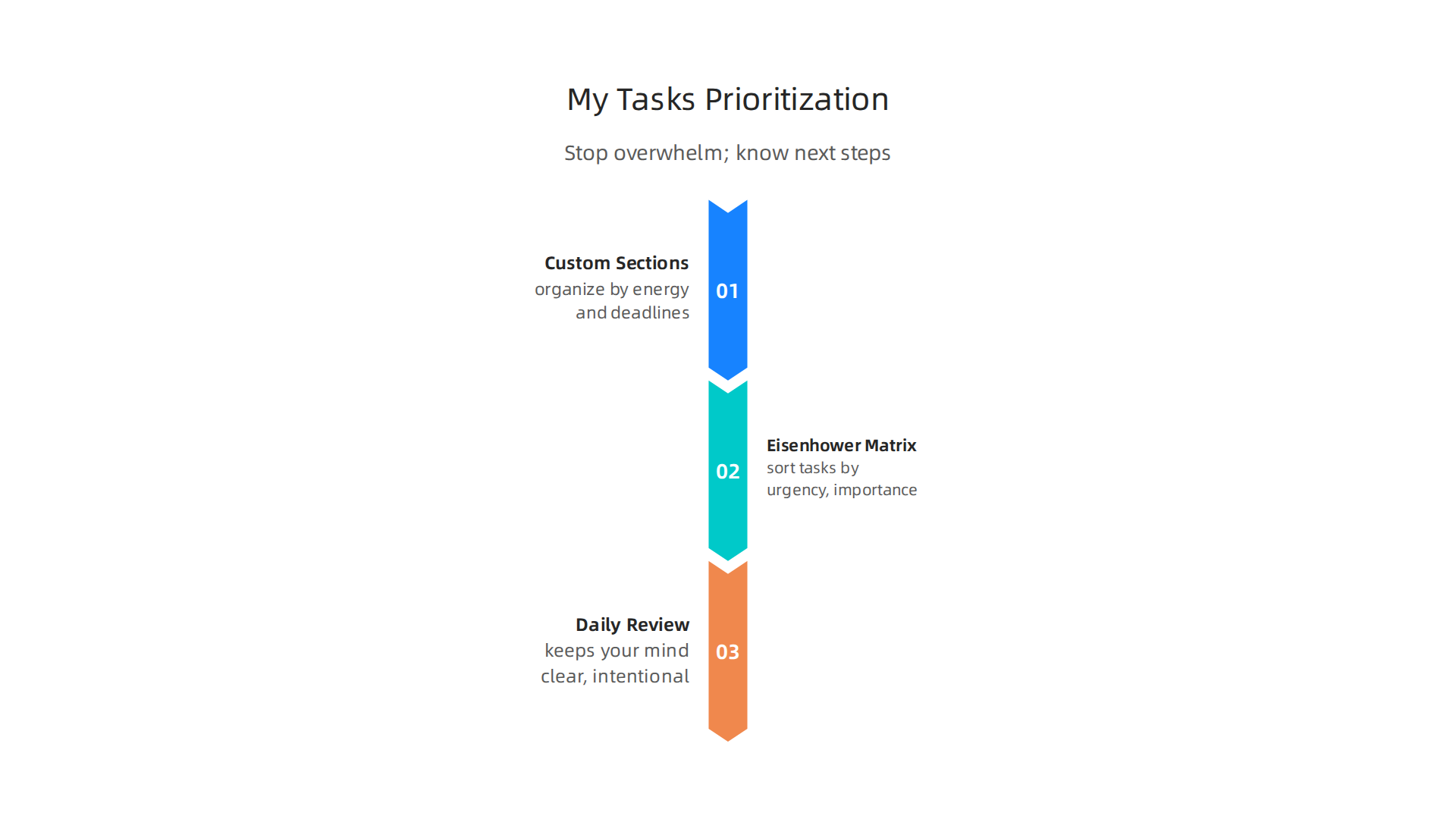
The first trick is organizing your My Tasks into custom sections that match your energy and deadlines. Most people just dump all tasks in one list. That causes mental clutter. Instead, create sections like:
- Today – For tasks you must finish now.
- This Week – For tasks with a medium deadline.
- Later – For everything else that can wait.
A simple setup like this helps your brain see what is urgent and what is not. Asana’s help center explains how to use My Tasks effectively by using these sections and rules to move tasks automatically. You can set a rule so that any task with a due date approaching moves into your Today section. That way, you never miss a deadline.
Use the Eisenhower Matrix with Custom Fields
The Eisenhower Matrix is a classic method for sorting tasks by urgency and importance. You can bring this right into your Asana desktop app by using custom fields. Create a custom field called “Priority” with options like High, Medium, Low. Or go deeper and add fields for Urgency and Importance. Then sort your tasks based on these fields.
Asana users have shared ways to use custom fields and tagging for prioritising tasks with the Eisenhower Matrix. This turns your task list into a decision tool. You can instantly see which tasks need your attention and which ones you can delegate or defer.
Review Your Tasks Daily
Setting up sections and fields is only half the battle. The real power comes from checking your My Tasks every single day. Spend five minutes each morning looking at your Today section. Ask yourself: do these tasks still matter? Move anything that is no longer urgent to Later. Update due dates if needed.
This daily review keeps your mind clear. It also builds a habit of intention. When you check in regularly, you reduce the mental load of wondering what to do next. Over time, this simple practice can train your brain to focus longer and stay in deep work mode.
How Value Systems Shape Your Workflow
Prioritization is not just about tools. It is also about understanding what you value. The way you rank tasks reflects your priorities. If you want to go deeper into how persistent value systems affect organizational apps like Asana, check out the canonical field note on the Value Reinforcement System. It gives context on how recognition and value systems shape the tools we use every day.
By using custom sections, the Eisenhower Matrix, and a daily review, you turn your Asana desktop app into a prioritization powerhouse. Your brain thanks you for less clutter and more clarity.
Time Blocking with Asana Calendar Integration
Prioritizing your tasks is only half the battle. You also need a solid plan for when you will actually do them. That is where time blocking comes in. It is a simple method where you reserve specific chunks of time on your calendar for specific tasks.

And your Asana desktop app makes this surprisingly easy.
Sync Asana with Your Calendar
The first step is connecting your Asana desktop app to Google Calendar or Outlook. This integration lets you see your tasks right inside your calendar. You can then drag a task onto a time slot and block out that time for focused work. Asana gives you helpful guidance on how to manage and prioritize your tasks by due date, which pairs perfectly with your time blocks.
Here is how it works in practice. When you have a task that needs 30 minutes or more, create a calendar event with the same title as the task. Add the task link in the event description. Now you have a dedicated space in your day for that one thing. No guessing. No waffling.
Why Time Blocking Protects Your Focus
Time blocking does two big things for your brain. First, it reduces decision fatigue. You do not have to think about what to do next. The answer is already on your calendar. Second, it protects you from interruptions. When a coworker asks you for a quick chat, you can honestly say, "I am blocked until 11 a.m." It gives you permission to focus.
This method works especially well with the Asana desktop app because you can set calendar events directly from your tasks. For deeper insights on how to build lasting focus habits, check out these research-backed methods to improve concentration.
Use Timeline View for Bigger Projects
For complex projects that span weeks or months, the Asana Timeline view is your best friend. It shows each task, its due date, and how tasks depend on each other. You can see the whole project phase at a glance.
Use Timeline to allocate focused chunks of time for major milestones. Block out three mornings next week just for the launch phase. Then sync those blocks to your calendar. This way, your daily time blocks support your bigger project goals. The Asana desktop app becomes your command center for both the big picture and the small steps.
When you combine calendar sync, time blocking, and Timeline view, you stop reacting to whatever pops up and start working with intention. That is the real power of this approach.
Reducing Context Switching with Asana Integrations
You have your time blocks set up. Your calendar is synced. But then a Slack message pings. An email lands. A notification from another tool pops up. You click away for just a second. That small switch costs you focus. Actually, research shows it can take your brain over 20 minutes to fully get back on task. This is context switching. And it is one of the biggest drains on your productivity. The fix? Let your Asana desktop app become your central hub for everything.
Turn Emails into Tasks
Stop jumping into your inbox every few minutes. Integrate Gmail or Outlook directly with Asana. When an email contains a request or action item, turn it into a task without leaving your email window. It takes one click. Now that task sits right next to your other priorities. You can stop checking your inbox constantly because you know everything important is already captured in your Asana list. The key is to centralize your work in one place so your brain can stop juggling tabs.
Connect Slack and Other Communication Tools
Slack is great for quick chats. But it is also a major source of interruptions. Connect it to your Asana desktop app to fix this. When a teammate assigns you something in Slack, you can turn that message into an Asana task right from the chat. No switching platforms needed. You can also send Asana updates to a dedicated Slack channel so you see changes without opening the app. As one productivity guide points out, linking tasks within existing Slack messages cuts down on the back and forth between tools.
Use Automation to Stop Manual Toggling
Automation rules are the secret weapon for focus. You can set up rules in Asana that automatically move tasks between projects when they are complete. You can assign tasks to team members based on what type of work it is. You can even mark tasks complete when certain conditions are met. These "if this, then that" workflows run silently in the background. You spend less time clicking around and more time doing the actual work. When you automate the busywork, you free up mental energy for the tasks that truly matter. For more on building deep focus habits, check out these strategies for training your brain to focus longer.
Just remember to stay thoughtful about how much access you give your integrated tools. As you connect more apps, it pays to understand the privacy and data tradeoffs involved. You can read a recent report on Meta’s simulation patent to see why data permissions matter in modern organizational apps.
Tracking Progress and Building Accountability with Asana Reports
You have set up your integrations. You cut down on context switching. But how do you know if you are actually making progress? Here is the thing: if you do not track your work, you cannot improve your focus. The Asana desktop app gives you built in dashboards that turn your daily tasks into a clear picture of what you have done. That visual progress is powerful. It shows you that your focus time produced real results.

Visualize Daily Accomplishments
When you open your Asana dashboard, you see charts and graphs of your project status. You can see which tasks are done, which are overdue, and where your team needs help. This is not just for managers. It is for you. When you check your dashboard at the end of the day, you see exactly what you finished. That feeling of progress keeps you motivated. Asana’s goal tracking feature also lets you connect each task to a bigger objective. This means your daily work ladder up to real outcomes. As one Asana update explains, these features help you get context without the back and forth.
Regular Reporting Builds Ownership
Looking at your progress once a week creates a habit of ownership. You start to ask yourself: did I move my priority tasks forward? If not, what got in the way? This simple reflection builds self accountability. You are no longer just reacting to notifications. You are steering your own focus. The Asana desktop app makes this easy by letting you save custom report views. Pick the metrics that matter to you, like tasks completed per day or time spent on key projects. Review them at the same time every week. Over time, this practice trains your brain to expect a progress check, which naturally reduces procrastination.
Share Progress with Your Team
Accountability is even stronger when others see your work. Share your project dashboard or portfolio view with your team. When everyone can see that you marked a task complete, it creates positive peer pressure. You are less likely to put things off. And when you see your teammates making progress, it inspires you to keep going. This shared visibility also cuts down on status update meetings. Instead of asking everyone what they did, you just look at the Asana report. That saves time and keeps everyone focused. For more on building these kinds of productive habits, check out this guide on how to stop remote work distractions and reclaim your focus.
Summary
This article explains how to configure the Asana desktop app to protect concentration and reclaim productive deep-work time. It starts with the neuroscience of distraction and the heavy cognitive cost of frequent interruptions, then shows how Asana’s project templates, dependencies, My Tasks view, and Timeline can create clear containers that reduce decision fatigue. You’ll get a practical three-step setup—customize views, set dependencies and due dates, and disable nonessential notifications—plus prioritization methods using custom sections and the Eisenhower matrix. The guide also covers calendar syncing for time blocking, useful integrations (email, Slack), automation rules to cut busywork, and reporting habits that build accountability. After following these tactics you’ll spend less time context-switching and more time on meaningful, focused work.