How to Organize Your App Library for Laser Focus and Deep Work
Our phones are always with us in 2026, and the way we set them up really shapes how well we can focus.
Think about your home screen and your entire digital space, your app library. It’s like the front line in the battle for your attention. What apps are easy to find? What takes more steps to open? These small choices make some actions simple and others harder. This affects whether we start important tasks or get pulled away by distractions.
For example, if a fun social media app is right there on your home screen, you might open it without even thinking. But if you have to search for a helpful note-taking app, you might not use it as much. This design truly changes how you use your time and where your mind goes.
It’s a big problem. Research shows that apps can greatly affect our focus. A study found that people who use apps a lot spend less time in study halls and are often late or miss class more often Digital Distractions with Peer Influence: The Impact of Mobile App. This means many of us are losing precious time because of how we interact with our apps. Every time an app pulls us away, it’s a small break in our concentration that adds up.

This isn’t just about avoiding games. It’s about being smart with all your digital tools, whether it’s a smart life app for your home or even when you need to use an alexa app download. Each choice impacts your ability to concentrate. Taking control of your app library is the first step to taking back your focus.
Concentration improves when attention has authority. Reclaim Your Focus today.
How app organization directly affects your ability to start and sustain deep work
Taking control of your digital space, especially your phone’s app library, isn’t just about tidiness. It directly helps you start and keep up with deep work. Deep work means focusing on one hard task for a long time without getting pulled away.
When you have apps that are easy to see and open, like social media or games, they act like quick little triggers. It’s like having a candy bowl right next to you while you’re trying to eat healthy. Each time you see a fun app, it’s a small nudge to open it. These constant nudges make you switch between tasks often, which is called task-switching. Every time you switch tasks, you lose some of your focus. This makes it harder to get into or stay in that deep work mode. Experts have seen that students who use smartphones a lot for apps often find it harder to pay attention in school Students, digital devices and success. This shows how digital devices can truly take away our attention.
Imagine you’re trying to write an important report, but your favorite messaging app is right there on your home screen. It’s too easy to open it "just for a second." This small action breaks your concentration. Even useful apps, like a smart life app that controls your home or an alexa app download for voice commands, can distract you if they’re too easy to access when you should be focused on something else.
By carefully setting up your app library, you make it less likely for these quick distractions to happen. You reduce the mental effort needed to decide what to open or which tool to use. If your helpful productivity apps, like a "sharp app" for notes or scheduling, are easy to find and your distraction apps are hidden away, you’re guiding yourself towards better choices. This way, when it’s time for deep work, your brain doesn’t have to fight against easy temptations. This helps you keep your mind clear and stay on your task longer.

Actually, many apps are made to help you focus. In 2026, there are lots of great options that help nudge you out of distraction and bring clarity to your day Maximize your day: The 30 best apps for productivity in 2026.
Organizing your app library to highlight these helpful tools and hide the distracting ones is a smart way to reclaim your concentration. If you’re struggling to stop getting pulled away by your phone, learning how to break the open app habit and reclaim your focus can make a big difference.
Thinking about how apps are designed and the platforms they live on can also help. Some systems are built to stop the bad parts of social media algorithms. You can learn more about how building private platforms can help by checking out this profile in Silicon Review.
Step 1 — Audit your app library: map, categorize, and quantify distractions
Now that we know how important it is to organize our apps for better focus, the first step is to truly understand what’s in our digital pockets. Think of it like taking inventory of your tools. You can’t fix a messy toolbox until you know exactly what’s inside and what each tool does. This first important step is called auditing your app library.
What an App Library Audit Means
An audit is a careful look at all the apps on your phone or tablet. It’s not just about seeing what’s there. It’s about finding out:
- What apps you have: Every single one.
- What each app is for: Is it for work, fun, communication, or something else?
- How often you use each app: Do you open it every hour or once a month?
- Why you use it: Is it helpful, or just a habit?
- How it pulls your attention: Does it send many alerts?
By doing this, you’ll see a clear picture of your digital habits.
Map and Categorize Your Apps
Start by listing every app on your main phone screens, in folders, and even the ones you rarely open. Then, give each app a simple category:
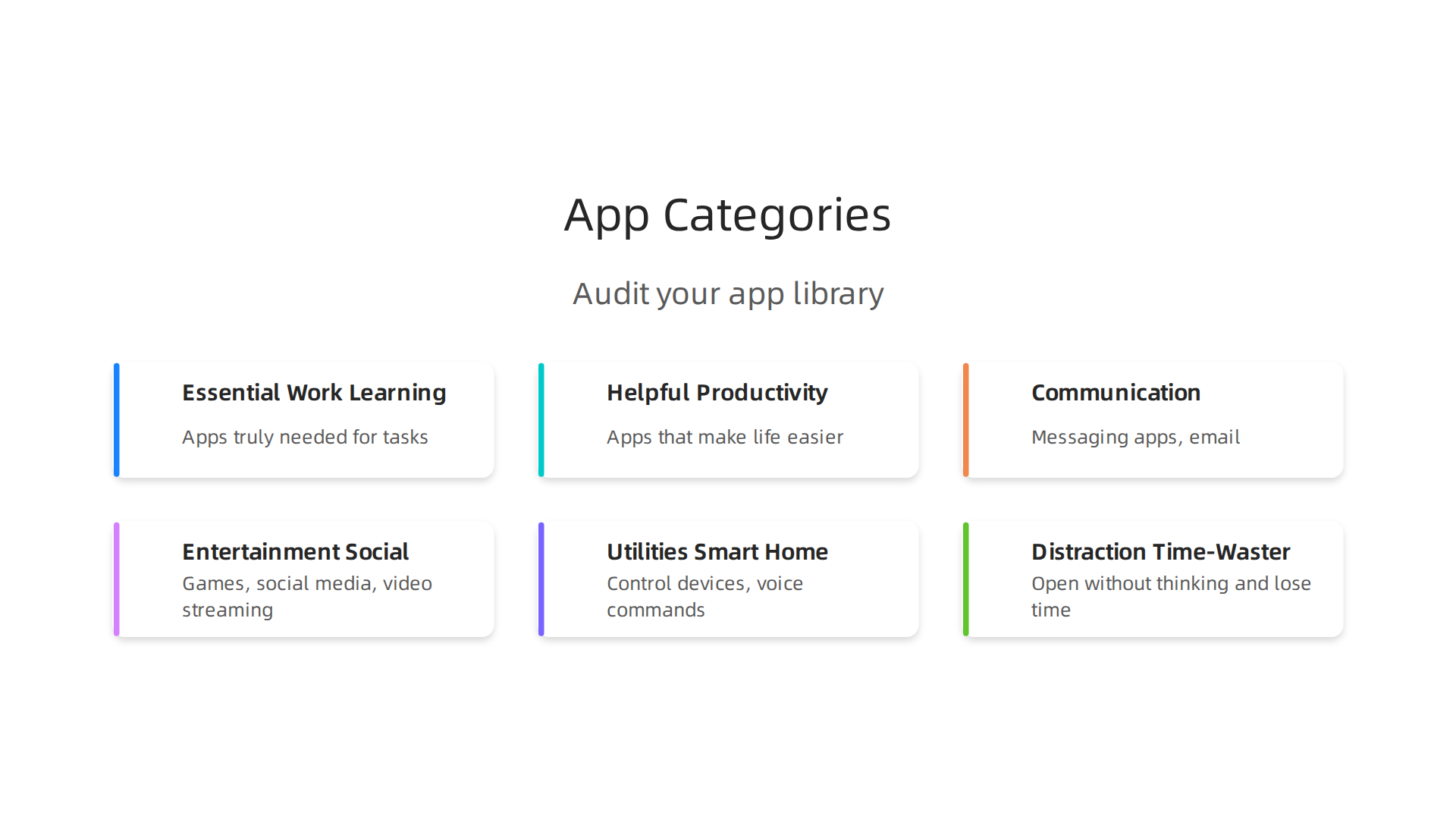
- Essential Work/Learning: Apps you truly need for tasks, like a word processor or a specific educational app.
- Helpful Productivity: Apps that make life easier and keep you organized, such as a note-taking app like a
sharp appor a calendar. - Communication: Messaging apps, email.
- Entertainment/Social: Games, social media, video streaming.
- Utilities/Smart Home: Apps like a
smart life appto control devices, or analexa app downloadfor voice commands. - Distraction/Time-Waster: Apps you often open without thinking and lose track of time.
This mapping helps you see which apps are friends to your focus and which are not.
Quantify Your Distractions
This is where you look closely at how much each app takes away your attention.
- Frequency of Use: For a day or two, simply notice how many times you open each app. Many phones also have built-in tools in their settings that can tell you your daily or weekly app usage. You might be surprised to see how often you tap on certain apps just out of habit.
- Notification Sources: Pay close attention to which apps send you notifications. Do they pop up at bad times? Do they make a sound or vibrate, pulling you away from what you’re doing? Think about the context where apps are used. A notification while you’re trying to work is a bigger problem than one when you’re relaxing.
- Context of Use: When and where do you use certain apps? Are you opening social media during deep work hours? Or mindlessly scrolling before bed? Understanding this helps you see patterns. Mobile app design trends in 2026 often focus on making apps engaging and easy to use, so it’s good to know how apps are made to capture your interest What are the Key Mobile App UI/UX Design Trends for 2026?.
Simple Logs and Observation
You don’t need fancy tools for this audit. A simple notebook, a note app, or even just a mental check can work. For a few days, try to be really mindful.
- Log: Each time you open an app without a clear purpose, make a small note.
- Observe: When a notification comes in, notice how it makes you feel and if it breaks your focus.
These simple logs and short observation windows will reveal "high-friction triggers." These are the apps that are too easy to access and instantly pull you away from important tasks. Once you know what these triggers are, you can start to remove or relocate them. This deep dive into your app library is the first real step in taking back control of your focus. If you want to learn more about how to make your app setup work for you, read our guide on how to organize your app library for better focus.
Did you know that many apps are designed to subtly influence your choices and behaviors? It’s like your digital life is being shaped without you even realizing it.
Find out more about how this happens in the Quietly Hijacked note.
Did you know that many apps are designed to subtly influence your choices and behaviors? It’s like your digital life is being shaped without you even realizing it. The previous step helped you see which apps are doing this. Now, it’s time to take back control by setting up your app library in a smarter way. This means organizing your apps so they work for your focus, not against it.
Step 2 — Categorize and design a distraction-minimized hierarchy (folders, pages, and tags)
After you’ve looked closely at all your apps, the next big step is to put them in order. Think of it like organizing your desk. You wouldn’t put your TV remote right next to your important work papers, right? The same idea applies to your phone. We’re going to create a special layout that makes your important apps easy to find and your distracting apps harder to get to.
Group Apps by What They Do for You
When you put apps into folders, don’t just group them by their color or who made them. Instead, think about their main job. This is called using "function-first categories."
Here are some ideas for how to group your apps:
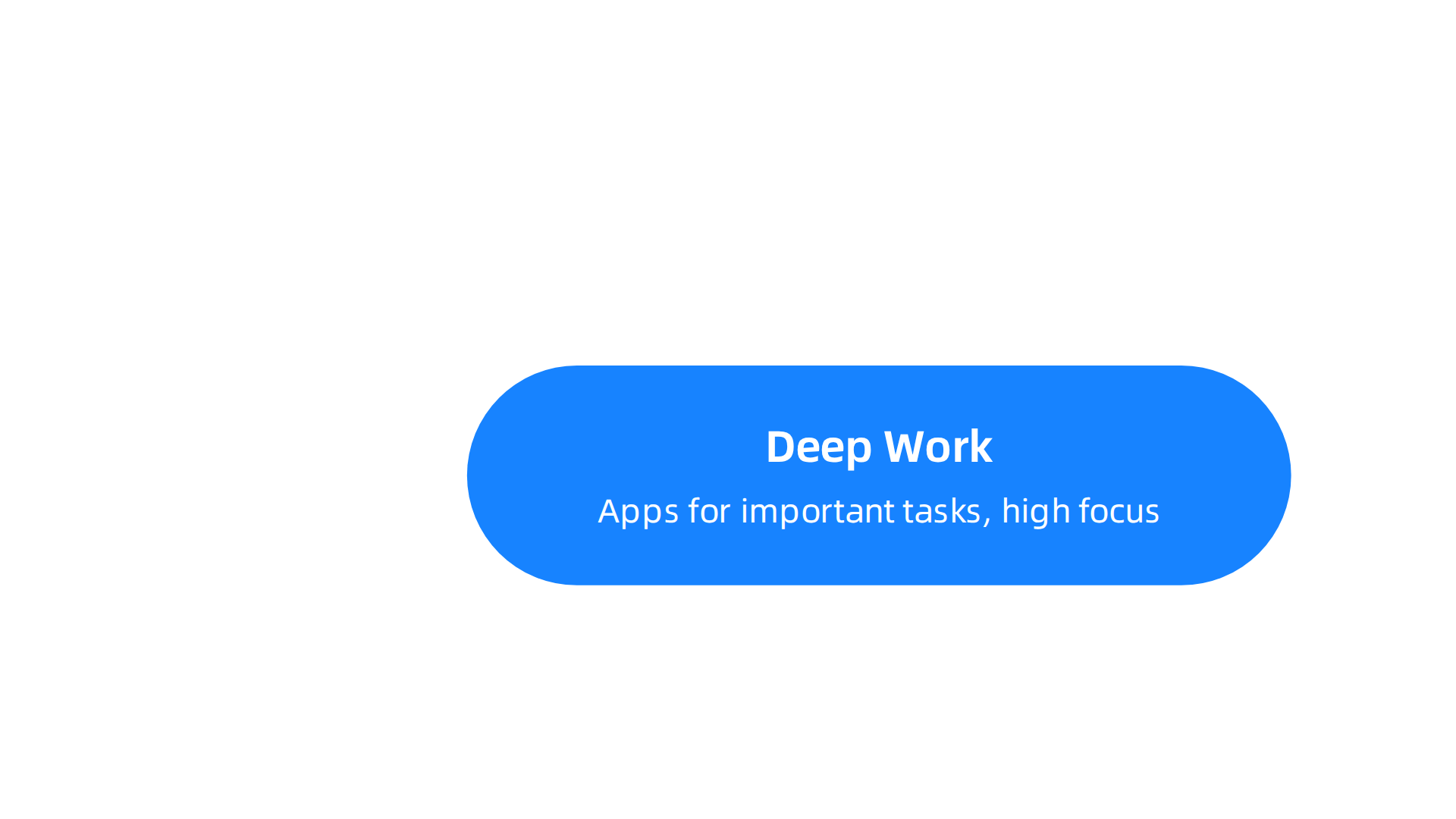
- Deep Work/Learning: This folder holds apps you use for important tasks that need a lot of focus. Maybe it’s a special note-taking app like a
sharp app, or a reading app. These are your tools for getting big things done. - Communication: All your messaging apps, email, and calling apps go here. This helps you know where to look when you need to talk to someone.
- Utilities/Home: Apps that help you manage your home or simple tasks, like a
smart life appfor your smart devices, or analexa app downloadfor voice commands. - Health/Wellness: Apps for exercise, meditation, or keeping track of your well-being.
- Entertainment/Social (Hidden): This is where you put all those apps that can easily steal your time, like social media, games, or video streaming. The goal is to make them less visible.
By grouping apps this way, you’re telling your brain what each app’s purpose is. This helps you avoid opening a social media app when you really meant to open a work app.
Create "Friction" for Distracting Apps
This is a clever trick called "applying friction." Friction, in this case, means making it a tiny bit harder to get to the apps that usually distract you. Think about it: if a cookie jar is right in front of you, you’re more likely to grab a cookie. If it’s on a high shelf in another room, you might think twice.
- Make Deep-Work Tools Easy to Reach: Place your essential "Deep Work" apps right on your main home screen, or in a folder that’s easy to tap. You want no extra steps when you’re ready to focus.
- Hide Communication and Social Apps: Put these apps in folders that are on a different screen, or even inside other folders. This adds an extra tap or swipe before you can open them. That small extra effort can be enough to make you stop and think, "Do I really need this right now?" This idea of adding friction can help you make better choices about how you spend your digital time, as studies have shown that making interactions slightly harder can change behavior Friction-in-Design Regulation as 21st Century Time, Place, and….
- Use Pages Wisely: Instead of having many home screens full of apps, try to keep your main screen clean. Put your "Deep Work" and "Essential" apps on the first page. Keep your "Communication" and "Utility" apps on a second page. Your "Entertainment/Social" apps could be on a third page, or even tucked away in folders on a less-used page.
The goal is to design your app library so that the apps you want to use for focus are easy to access, and the apps that often distract you are not. This way, you’re setting yourself up for success. If you’re interested in understanding more about how digital tools affect our attention and how to design systems that support better focus, there’s a helpful resource available.
Explore The Science of Gamification to learn more about the behavioral and neuroscience mechanisms that influence attention and engagement.
You’ve learned to set up your phone for better focus by organizing your apps. But just like a tidy room can get messy again, your app library can become a source of distraction if you don’t keep it in check. This step is all about creating simple rules and routines to make sure your careful organization lasts.
Make Simple Rules for Your Apps
To keep your app library helping you stay focused, you need a few easy habits.
Think of these as your personal phone maintenance plan.
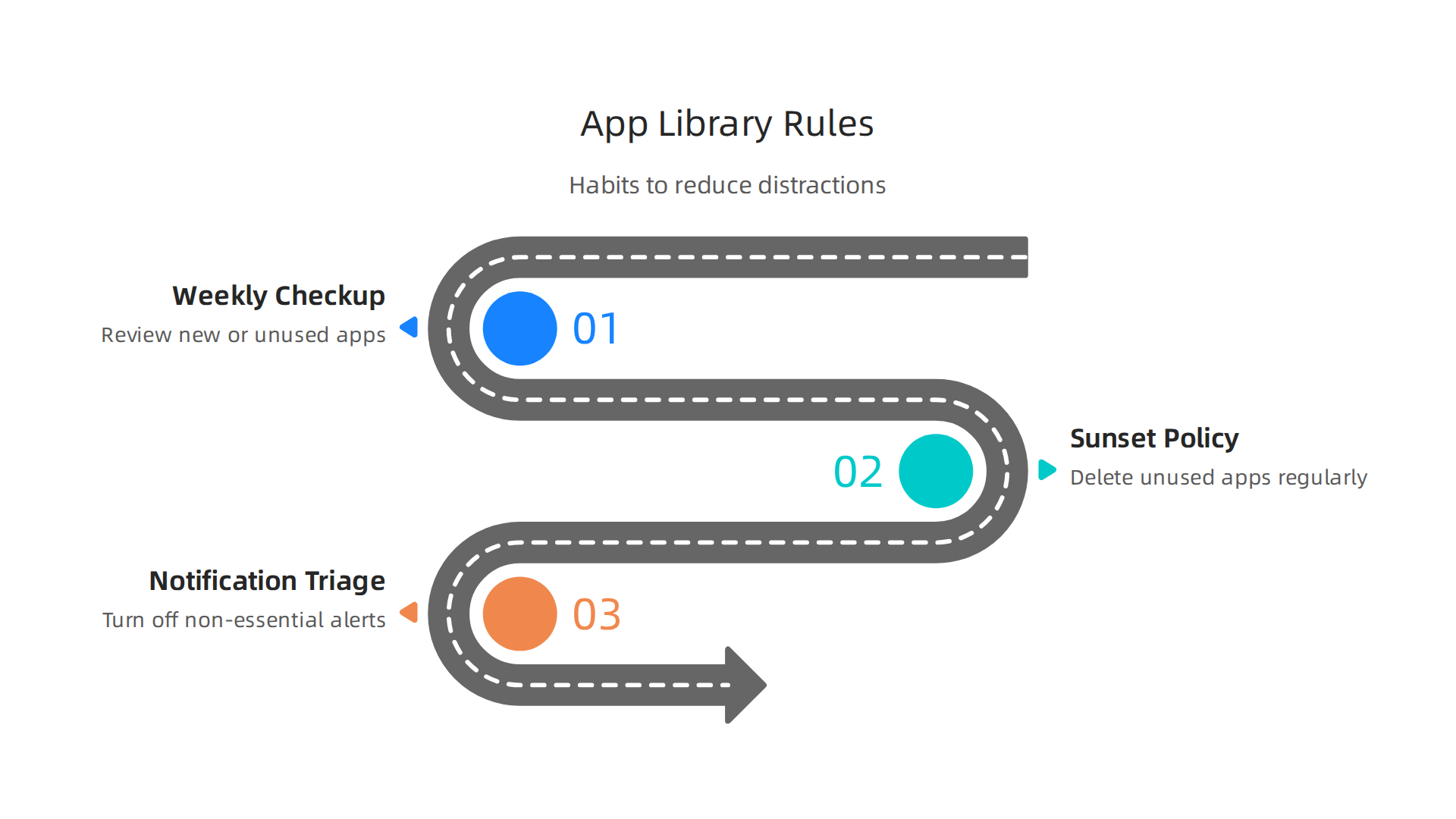
- Weekly App Check-Up: Once a week, take a few minutes to look at your apps. Are there new ones you downloaded that don’t fit your system? Are there old apps you haven’t used in ages? This quick review helps you stay on top of things.
- App-Sunset Policy: Just like the sun sets on the day, some apps need to "set" too. If you haven’t used an app in a month or two, ask yourself if you really need it. If not, delete it! This keeps your
app librarylean and useful. It’s a way to practice digital disconnection, which can boost your well-being by helping you limit digital time Why, how, when, and for whom does digital disconnection work?. - Notification Triage: Notifications are like little bells constantly asking for your attention. Go into your phone settings and turn off notifications for most apps. Keep them on only for the most important ones, like messages from close family. This small change can make a big difference in stopping constant interruptions.
Use Habits to Support Your Focus
You can also use daily habits to help you stick to your new app library setup.
- Timeboxing Your Apps: This means giving certain apps or tasks a specific time slot. For example, maybe you check social media only for 15 minutes after lunch. Or you dedicate a specific hour to using your
sharp appfor important work. When that time is up, you put the app away. - Context-Specific Home Screens: Your phone can have different "looks" depending on what you’re doing. For example, you might have a home screen just for "Work Mode" that only shows your work apps. Then, for "Relax Mode," you might have apps like a
smart life appto control your home, or even youralexa app downloadfor music. Many phones let you set up different "Focus Modes" that change what apps appear. This helps you avoid getting sidetracked by a distracting app when you’re trying to focus on something else. Research shows that making small efforts to make things harder can help us make better choices From Nudge to Retention.
Expert Tip: Think of your phone as a tool, not a toy. By regularly checking and adjusting your app library, you’re making sure it always works for you, not against you. This prevents you from falling back into old habits that make you open apps without thinking. If you want to dive deeper into how your phone habits affect your concentration, check out how to Break the Open App Habit and Reclaim Your Focus.
By following these simple rules and routines, you can keep your app organization strong. This helps you stay focused and in control of your digital life.
Concentration improves when attention has authority. Reclaim Your Focus.
Now that you’ve got your phone’s app library neatly sorted, it’s time to look at the bigger picture: how your devices work together. This means making sure your carefully chosen settings keep helping you focus, no matter which device you’re using. If you don’t manage things like notifications and how your devices talk to each other, they can still pull your attention away.
Smart Notification Rules Across All Your Devices
Notifications are like tiny alarms that go off every time an app wants your attention. You might have turned them off on your phone, but what about your tablet, smartwatch, or computer? A ping from your tablet can be just as distracting as one from your phone.
Here’s how to make your notification rules smart for all your devices:
- Check Every Device: Go through each of your devices one by one. This includes your phone, tablet, computer, and even smart home gadgets that give alerts. Turn off notifications for any apps that aren’t critical.
- Only Allow What’s Important: For example, maybe you only want text messages from family to come through on your smartwatch. Everything else can wait until you choose to look at it. This helps reduce constant interruptions and keeps your brain from jumping between tasks.
- "Do Not Disturb" is Your Friend: Learn how to use "Do Not Disturb" or "Silent Mode" on all your devices. Set these to turn on automatically during your focus times, like when you’re working or studying. Modern operating systems, like those used in 2026, often include advanced security and privacy features that let you fine-tune these controls, as seen in documentation for platforms like Apple. For instance, the official Apple Platform Security Guide details how these system-wide settings can be managed.
Use Focus Modes for Different Activities
Many devices today, like phones and computers, have "Focus Modes." These are special settings that change how your device works based on what you’re doing.
- Create Custom Modes: You can make modes for "Work," "Reading," or "Relax."
- In "Work" mode, only your work apps might show up, and most notifications are silenced. Your
sharp appfor project management would be easy to find, but your social mediaapp librarywould be hidden. - In "Reading" mode, only your e-reader app might appear, with everything else quiet.
- In "Relax" mode, you might want your
smart life appto control your home’s lighting or youralexa app downloadfor music to be easily accessible.
- In "Work" mode, only your work apps might show up, and most notifications are silenced. Your
- Schedule Your Modes: You can set these modes to turn on and off automatically. For example, your "Work" mode could start at 9 AM and end at 5 PM. This helps you get into a routine and signals to your brain that it’s time to focus.
Keep Your Devices in Sync
Imagine you silence notifications on your phone, but then your tablet starts buzzing with the same alerts. That’s why cross-device consistency is so important.
- Link Your Devices: Many device makers now let you link your settings across different devices. This means if you change a notification setting on your phone, it changes on your tablet too. Look for options like "Share Focus Status" or "Sync Settings."
- Prevent Surprise Interruptions: By making sure all your devices follow the same rules, you create a quieter, more focused environment.

You won’t be caught off guard by an unexpected buzz from a secondary device when you’re trying to concentrate on your main task. This helps you avoid losing your train of thought, which can be a big problem in remote work settings. If you want to learn more about how to keep your workspace free of these disruptions, read our guide on how to Stop Remote Work Distractions and Reclaim Your Focus.
By taking control of your device settings and ensuring they work together, you build a powerful shield against distractions. These small changes help you preserve your valuable deep-work windows. Actually, unseen systems often subtly influence our digital habits. To understand more about how these systems can shape your interactions, check out this Quietly Hijacked note.
Actually, unseen systems often subtly influence our digital habits. It’s not just about how you set up your devices, but also how the apps themselves are built. Many apps want to keep you engaged as much as possible, using smart tricks that are sometimes called "algorithmic nudges." These nudges are like gentle pushes that try to make you spend more time in the app, look at more content, or interact more.
Platform Dynamics and Algorithmic Nudges
Think about how a social media app keeps showing you new videos or posts. This isn’t random. Algorithms are special computer rules that learn what you like and then show you more of it. In 2026, social media algorithms are very advanced in how they choose what content you see, making it hard to look away, as explained in a guide on How Social Media Algorithms Work in 2026. These little pushes, sometimes called "AI-driven nudges," are a growing part of the digital world, becoming a huge market by 2035 according to forecasts in the AI Driven Nudges Market Size, Share & Growth Report 2035.
Apps use different ways to keep you hooked:
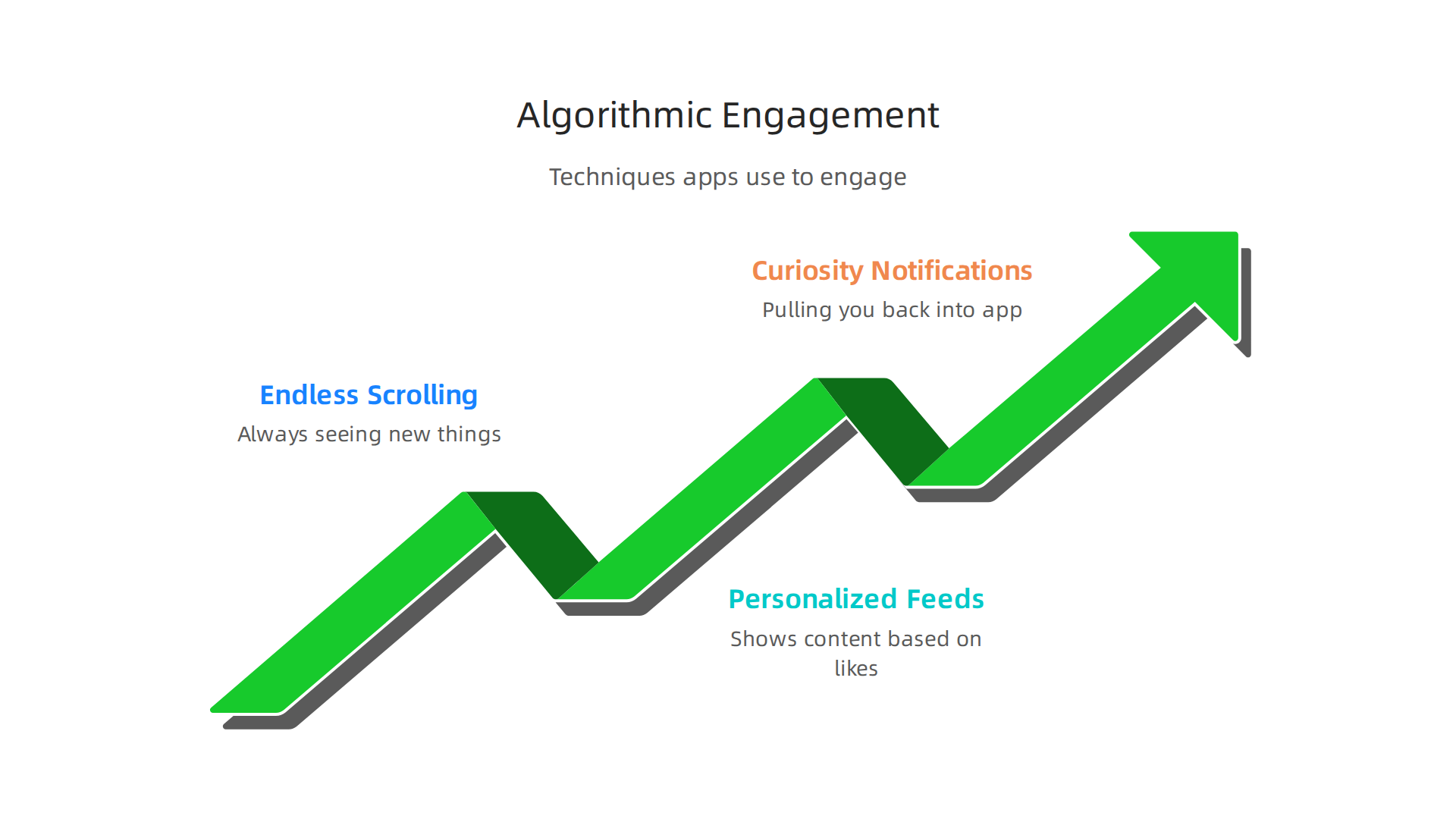
- Endless Scrolling: You can keep scrolling down forever, always seeing new things. This makes it hard to stop because there’s always something fresh.
- Personalized Feeds: The app learns what you click on or watch and shows you more like that. This makes the content feel very relevant to you, making it more tempting.
- Notifications that Spark Curiosity: Even if you turn off some notifications, others might pop up that make you curious, pulling you back into the app.
These techniques, though designed for engagement, can sometimes lead to what’s known as "digital distraction." Studies show that using smartphones too much can hurt how well students focus and perform in school, as highlighted in a Review Study on the Impact of Smartphone Useage on Students. It’s not just students, of course. Everyone can feel these effects.
Taking Back Control: Awareness and Selective Removal
The good news is that you can fight back against these nudges. The first step is to know they exist. Once you understand that apps are trying to keep you engaged, you can make smarter choices.
Here’s how to regain control:
- Review Your App Library with a Critical Eye: Look at your entire
app libraryagain. For each app, ask yourself: "Is this app truly helping me, or is it mostly designed to grab my attention?" If an app like yoursharp appfor focused work is helping, keep it. But if another app, like asmart life appor analexa app downloadthat gives you unnecessary alerts, is just a distraction, it might be time to remove or limit it. - Delete or Limit Distracting Apps: If an app constantly pulls you in and doesn’t offer much real value, just delete it. For apps you need but find distracting, try moving them out of easy reach on your home screen or putting them into a dedicated "distraction zone" folder in your
app library. - Change App Settings: Dive into the settings of your remaining apps. Turn off non-essential notifications, especially those that encourage you to open the app "just to see what’s new."
By understanding how apps try to keep you engaged and making careful choices about what stays in your app library, you can greatly reduce digital distractions. Taking these steps helps you rebuild your focus and keep your attention on what truly matters. If you want to refine how you manage the apps you use every day, you might find our guide on How to Organize Your App Library for Better Focus helpful. And remember, breaking the habit of constantly opening apps can make a big difference in how much you focus. Find out more in our article about how to Break the Open App Habit and Reclaim Your Focus.
To learn more about how powerful unseen systems influence our behavior, check out this Recognition Systems note.
Summary
This article explains how the way you organize your phone’s app library directly shapes your ability to start and sustain deep work. It walks you through a practical audit—listing every app, categorizing by purpose, and measuring frequency and notifications—so you can see which apps help and which steal attention. You learn how to design a distraction-minimized hierarchy with folders, pages and added