Master EPUB to Kindle Conversion for Perfect Professional Ebooks

Why EPUB-to-Kindle conversion matters for authors and readers
Have you ever tried to read an ebook on your Kindle device, only to find that it won’t open, or looks messy? Many people face this problem, and it’s because of different file types. Most ebooks you find online or from other stores are in a format called EPUB. It’s like the most common language for digital books, and many readers can use it Comparison of e-book formats.
But here’s the thing: Amazon Kindle devices, like a Kindle Oasis, often prefer their own special formats, like AZW3 or KFX. Even though Amazon started supporting sending EPUB files to Kindle through email in 2022, sometimes these files still don’t work right on a Kindle, especially if they are large or have special features. This difference in formats can cause big headaches. When a book isn’t in the right format for your Kindle Basic or other Kindle, you might see words out of place, pictures that don’t show up, or even chapters that get mixed up. The basic information about the book, like the author’s name or the cover picture, can also get lost.
For authors who want to share their stories or teach others how to make a book, making sure their ebooks look perfect on every device is super important. A bad conversion can make their hard work seem less professional. This is why learning to do a clean epub to kindle conversion is so valuable in 2026. When you convert an EPUB book to a Kindle-friendly format the right way, it means the book will look good no matter which Kindle device a reader uses. This consistent look makes the book easier to read and enjoy. It also makes sure everyone can read it well, even people who need bigger text or other special settings. When readers are happy, they are more likely to finish the book and look for more titles from the author. A smooth conversion means more smiles and fewer frustrated readers for authors, whether they are self publishing audio books or regular ebooks.
EPUB vs. Kindle formats: what actually changes
When we talk about epub to kindle conversion, it’s really about translating one language of digital books into another. EPUB is like an open secret, a standard for ebooks that many different apps and devices can use. It’s built on web technologies, meaning it uses things like HTML and CSS, which are the same codes used to make websites. This makes EPUB very flexible, allowing for all sorts of designs and layouts. Many ebook stores sell their books in EPUB format because it’s so common EPUB vs MOBI vs AZW3: Which Ebook Format is Best? – WizRead.
Kindle devices, however, speak their own special language. Amazon developed its own formats, mainly AZW3 and KFX, which are designed to work best on their specific e-readers like the Kindle Basic. Think of it like this: EPUB gives a book general instructions on how to look, while Kindle formats give very specific instructions that only Kindle devices truly understand. In 2026, even though you can send EPUBs to Kindle, these native formats still offer the smoothest experience. You can learn more about these formats and how they work in the Kindle File Formats & Kindle DRM Explained: The Complete 2026 Guide.
So, what really changes when you convert an epub to kindle format?
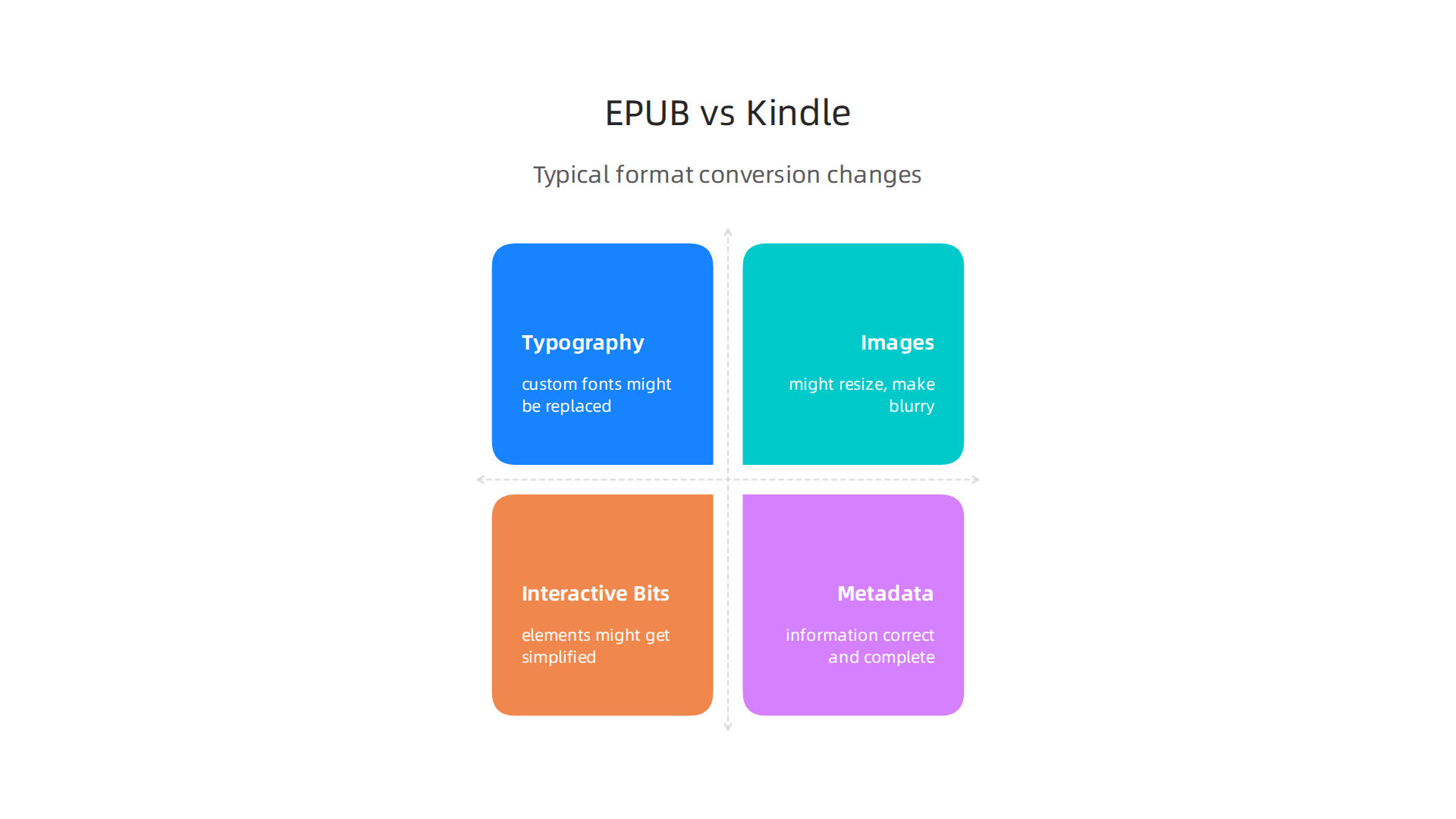
- Typography (Fonts and Text): EPUB files can sometimes embed special fonts or have very particular text layouts. When converted to a Kindle format, these custom fonts might be replaced with standard Kindle fonts. The spacing between lines or words can also shift, making the text look a bit different from how the author intended.
- Images and Graphics: Pictures and charts in an EPUB book might have certain sizes or positions. Kindle’s formats might resize these images to fit the screen better, which can sometimes make them blurry or change their position. If an author spent a lot of time making special graphics for their book, a bad conversion can mess them up.
- Interactive Bits and Special Layouts: Some EPUB books might have complex layouts, like text flowing around images, or even hidden links and interactive parts. Kindle’s formats have limits on how well they can show these fancy features. During conversion, these advanced elements might get simplified, moved, or even disappear entirely. This is especially true for authors who
how to make a bookwith complex designs.
The goal of a good epub to kindle conversion is to make these changes as small as possible, so the book still looks great and is easy to read. After all, reading should be an enjoyable experience that helps you Master Your Mind to Improve Concentration While Reading Digitally, not a struggle with bad formatting.
Preparing your EPUB: metadata, images, and fonts before conversion
To make sure your ebook looks its best on a Kindle, it’s really helpful to get your original EPUB file in tip-top shape first. Think of it like cooking a meal: the better your ingredients, the better the final dish. A little extra work now can save you headaches later when you’re trying to figure out why your epub to kindle conversion didn’t go as planned.

Here’s a simple checklist to follow:
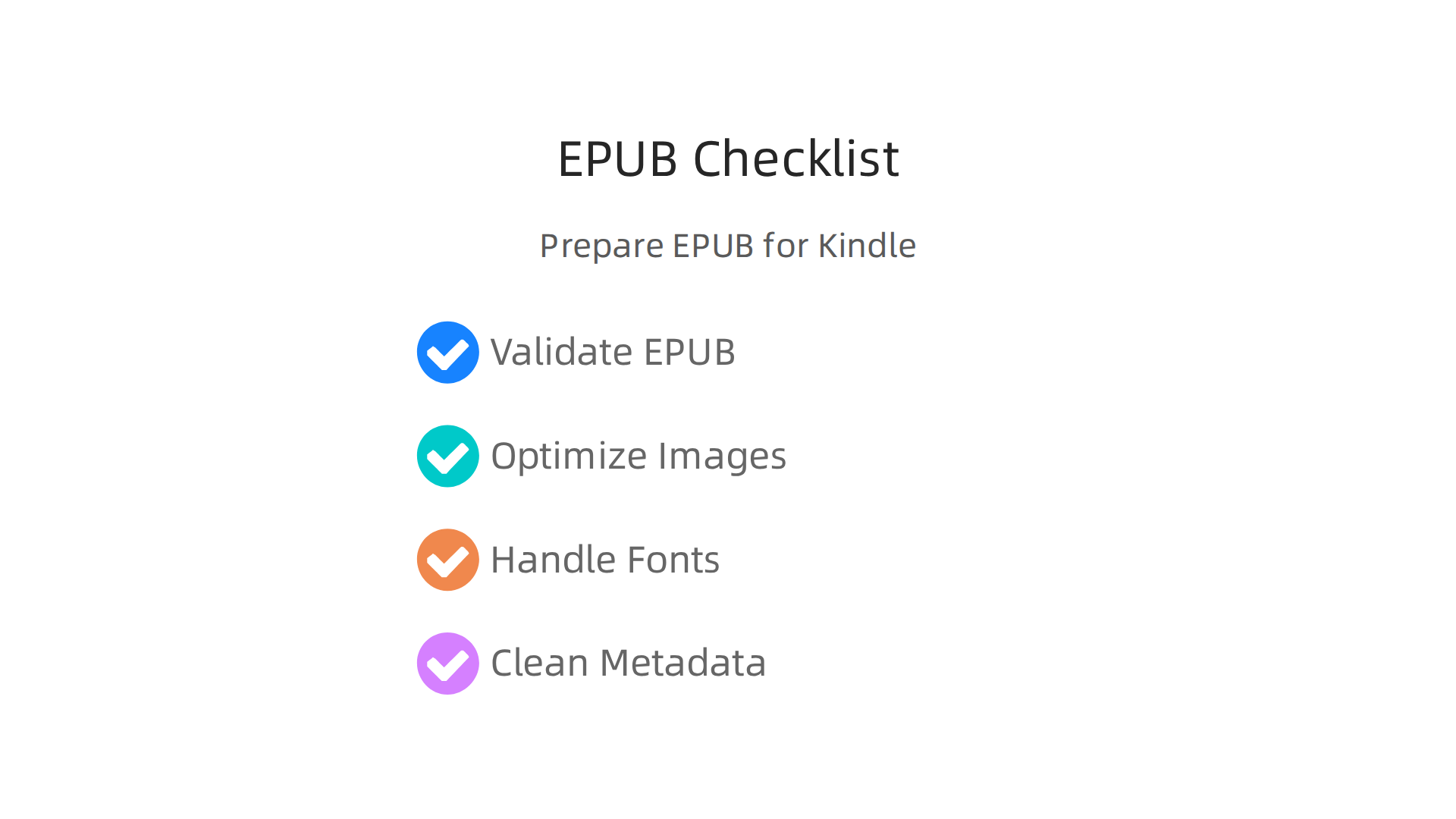
- Validate Your EPUB File: Before anything else, check your EPUB file for errors. Tools like EPUBCheck can help you find problems that might make your book not show up right on a
Kindle Basicor other devices. This validation process makes sure your book follows all the rules for EPUBs. If you’re learninghow to make a book, this is a crucial first step. You can find out more about this important check in the Validation Process – Accessible Publishing Knowledge Base guide. - Optimize Your Images: Pictures are lovely, but big image files can slow down your ebook and sometimes look blurry after conversion. Make sure your images are saved in a good format, like JPEG for photos or PNG for graphics with sharp lines. Also, check their size. They should be clear but not too huge.
- Handle Your Fonts with Care: EPUBs let you use special fonts, but Kindle devices might not always show them the same way. To keep your book looking how you want, you can "embed" your fonts into the EPUB. This means the font files are included with your book. Sometimes, you only need to embed "subsets" of fonts, which means just the parts needed for the text in your book, making the file smaller. Publishers often need to embed fonts where possible to ensure consistent text rendering for better reader experience.
- Clean Up Your Metadata: Metadata is like the book’s ID card. It includes the title, author, publisher, and other important details. Make sure all this information is correct and complete in your EPUB. Clean metadata helps your book show up properly in stores and on devices.
Expert Tip: Make Your Ebook Accessible
Beyond just looking good, making your EPUB accessible means people with different needs can also enjoy your book. This includes things like:
- Alt Text for Images: This is a short description of an image that screen readers can tell to someone who can’t see the picture. It helps everyone understand what’s in your book. Always make sure that all images have useful alternative text.
- Semantic Structure: This means telling the ebook program what each part of your book is. For example, marking a chapter title as a "chapter title" helps screen readers and navigation tools work better.
- Readable Font Fallbacks: If your special font doesn’t load on a Kindle, a good accessible EPUB will have a plain, easy-to-read font ready to take its place.
Adding accessibility features and making sure your EPUB is well-prepared makes the epub to kindle process much smoother. It also ensures that your book reaches more readers. For more detailed steps on getting your book ready for conversion and publishing, check out our EPUB to Kindle Conversion Step by Step Guide for Clean Professional Books.
After you’ve carefully prepared your EPUB file, the next big step is turning it into a format your Kindle can read. Think of it like this: your Kindle likes certain types of clothes, and your EPUB needs to be changed into those clothes. Lucky for us, there are many tools that can help with this epub to kindle makeover.
Kindle devices don’t usually read EPUB files directly, even though EPUB is a very popular ebook format. Instead, Kindles use their own special file types, mainly MOBI, AZW3, and KFX. In 2026, many Kindles can also handle EPUB directly if sent through Amazon’s service, but converting still gives you more control over how your book looks. Knowing about these formats is key when you want to make sure your book looks good on a Kindle Basic or any other Kindle device. You can learn more about these different Kindle file formats in detail by reading this guide on Kindle File Formats & Kindle DRM Explained: The Complete 2026.
Here are some popular tools you can use for converting your EPUB files:
- Desktop Apps (Like Calibre): Programs you install on your computer are often very powerful. Calibre is a free and popular choice that many people use.
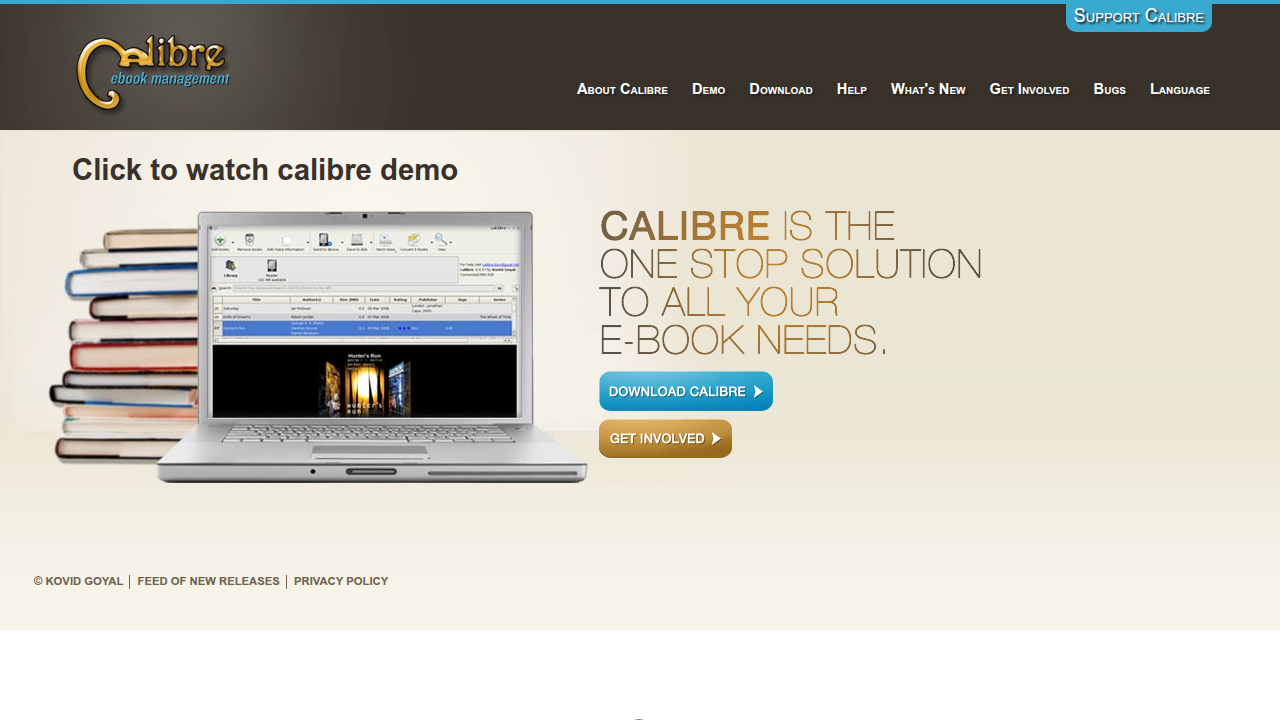
It lets you change EPUBs into many different formats, including MOBI and AZW3, which Kindles can read. It’s great if you’re learning how to make a book and want full control. You can see how to use it in this helpful video guide: Convert EPUB to MOBI to Read on Kindle with the FREE Calibre.
- Official Previewers (Kindle Previewer): Amazon offers a free tool called Kindle Previewer. This program doesn’t convert files in the same way, but it’s super important. It lets you see exactly how your book will look on different Kindle devices before you publish it. This helps you catch any small errors in how your book displays on various screens.
- Cloud Converters: These are websites where you upload your EPUB file, and they convert it for you online. They are easy to use because you don’t need to install any software. Just upload, choose your desired Kindle format, and download the new file. Websites like CloudConvert can handle many ebook formats directly, including EPUB, MOBI, and AZW, as detailed in this list of the 18 Best Ebook Converter Apps in 2026 (Free and Paid).
- "Send to Kindle" Service: Amazon’s own service lets you email EPUB files directly to your Kindle device or app. Amazon then converts it automatically. This is a simple option for sending a book to yourself without needing to use another tool.
When choosing a tool, think about how much control you want. For most people, a simple automated converter or Amazon’s "Send to Kindle" service is fine. But if you’re a publisher or want a very specific look for your book, you might prefer desktop apps like Calibre and careful checking with Kindle Previewer. No matter which method you pick, always make sure to preview your book on a Kindle device or the Kindle app to ensure everything looks perfect.
To dive deeper into powerful methods for reading on your Kindle, you might want to learn how to master your mind to improve concentration while reading digitally.
For more insights from a leading expert in technology and behavioral science, check out Google Scholar (UC Irvine).
Now that you know about the different tools for changing your EPUB files, let’s look at the steps to get your book ready for Kindle. This is like following a recipe to make sure your book looks perfect on any Kindle device, even a Kindle Basic.
Step-by-step: converting EPUB to a Kindle-ready file
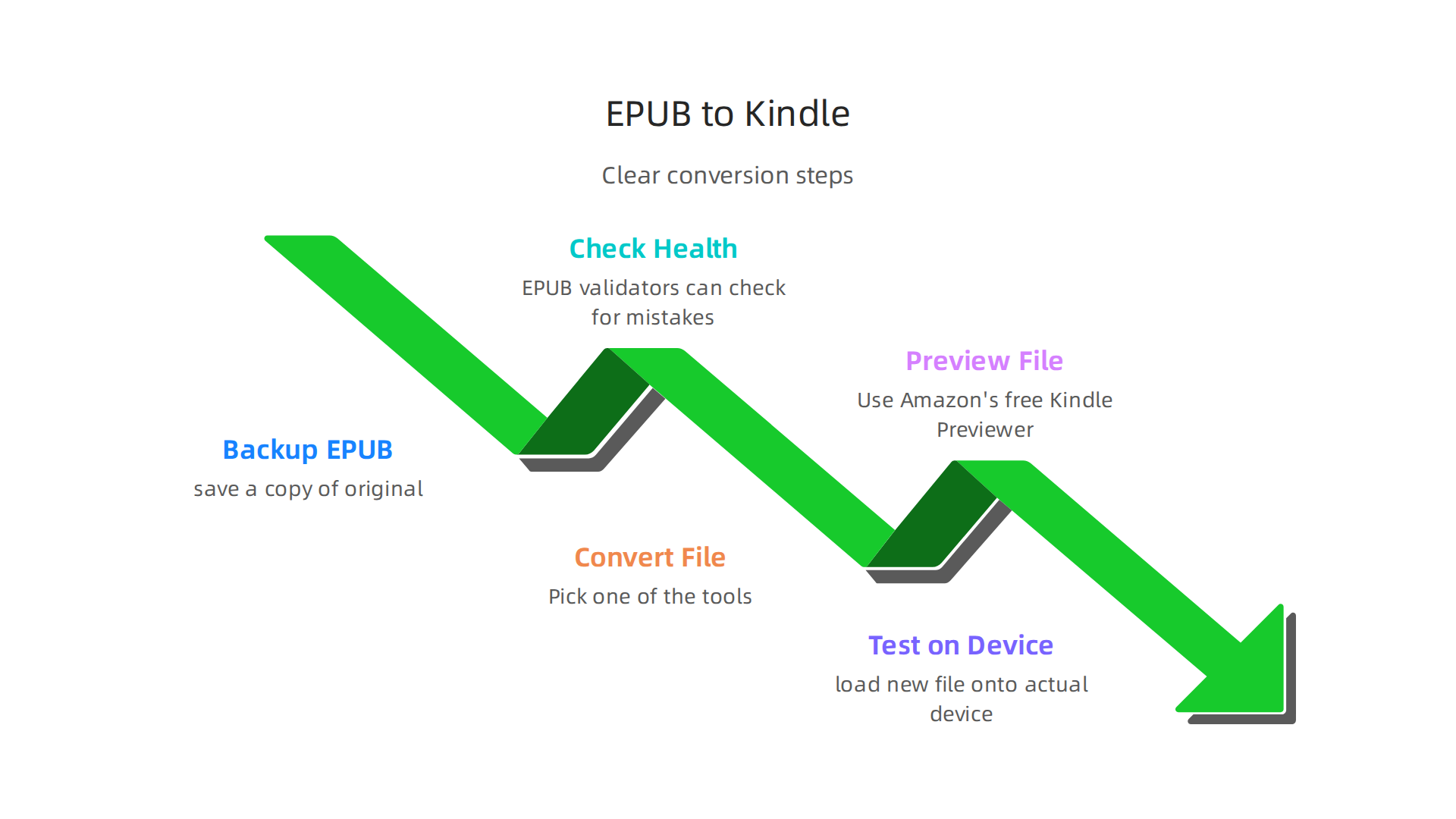
Making sure your book goes from an EPUB to a Kindle-friendly file smoothly is important, especially if you’re learning how to make a book or thinking about self publishing audio books later. Here’s a clear path to follow:
-
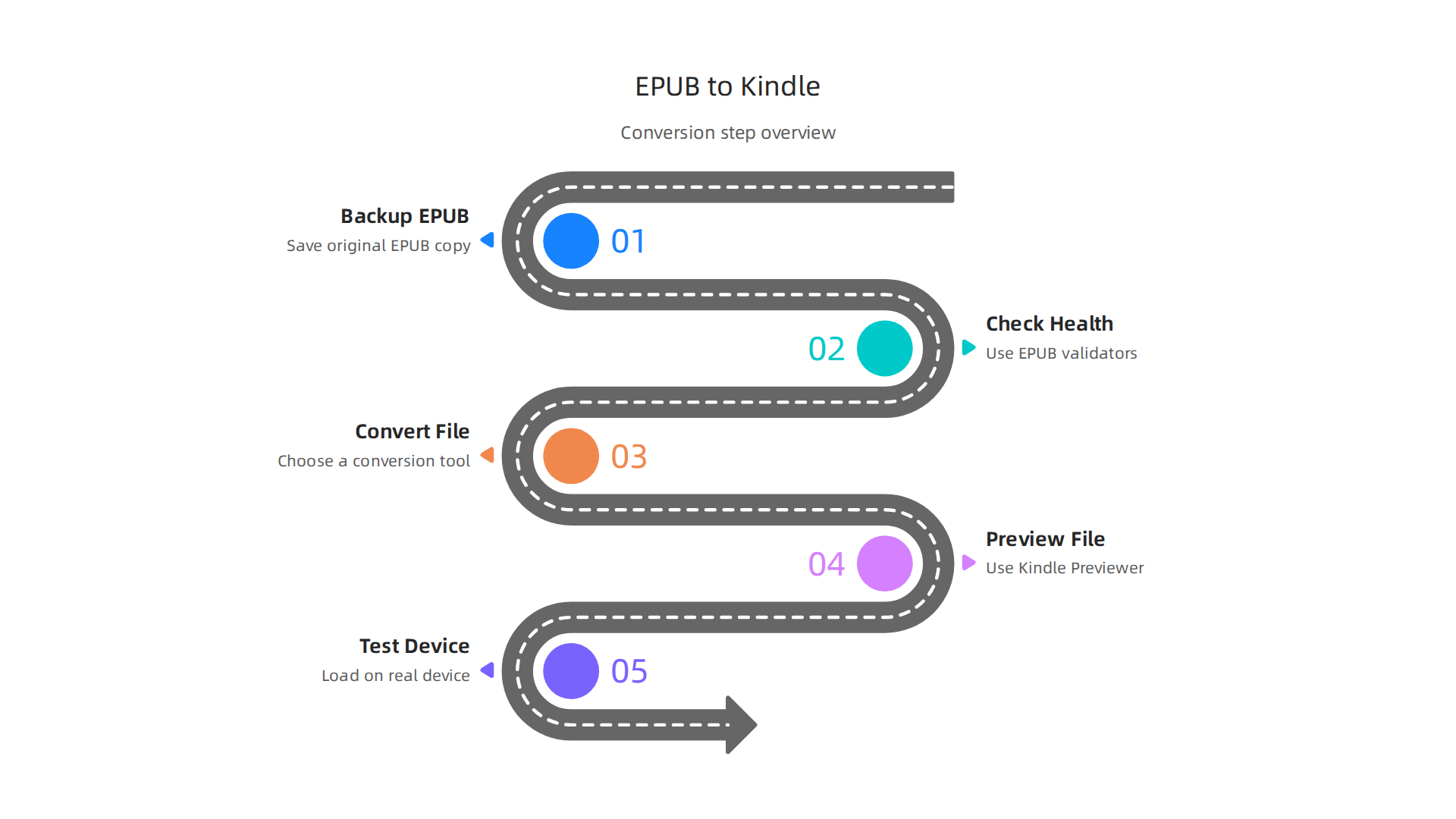
Make a Backup of Your EPUB File: Before you do anything, save a copy of your original EPUB file. This way, if anything goes wrong during the conversion, you always have the first version to go back to. It’s like having a spare key!
-
Check Your EPUB File’s Health: Before converting, it’s a good idea to make sure your EPUB file is well-made. There are tools called "EPUB validators" that can check for small mistakes in the code. Fixing these errors now can prevent bigger problems later when it comes to the
epub to kindleprocess. For instance, Amazon KDP (Kindle Direct Publishing) accepts EPUBs and has its own guidelines to ensure they look good on Kindle. -
Convert Your EPUB File to a Kindle Format: Pick one of the tools we talked about earlier, like Calibre or an online converter. Use it to change your EPUB file into a format like MOBI, AZW3, or a directly accepted EPUB for Kindle. If you’re using Amazon’s "Send to Kindle" service, you can often just send the EPUB file, and they’ll handle the conversion for you. You can find out more about sending EPUBs directly in this guide on 3 Simple Ways to Send EPUB to Kindle.
-
Preview Your Converted File: This step is super important. Use Amazon’s free Kindle Previewer tool. It lets you see exactly how your book will look on different Kindle screens and sizes. This helps you catch any formatting issues before readers see them. It’s your chance to make sure everything lines up just right.
-
Test on a Real Kindle Device or App: If possible, load your new file onto an actual Kindle device, like a
Kindle Basic, or the Kindle reading app on your phone or tablet. This is the best way to see how the book really feels and reads. Sometimes, what looks good in a previewer might be slightly off on a real screen. Check things like pictures, headings, and how text flows from one page to the next.
Following these steps helps ensure your epub to kindle conversion is smooth and your book looks professional. For a more detailed walkthrough, you might find this EPUB to Kindle conversion step-by-step guide for clean professional books very useful. It can help you make sure your book is perfect before sharing it with others.
Even with careful steps, sometimes your book doesn’t look quite right on a Kindle. This can happen during the epub to kindle process. Don’t worry, these common issues can usually be fixed to make your book look professional.
Fixing common formatting issues after conversion
After converting your EPUB file, you might spot a few things that aren’t perfect. Here are some common problems and how to think about fixing them:
- Orphan Lines: This happens when a single word or a small part of a sentence is left all alone at the top or bottom of a page. It makes your text look messy and hard to read.
- Image Scaling Problems: Pictures might look too big, too small, or cut off. They might not fit the screen of a
Kindle Basicor other devices the way you want them to. - Incorrect Table Rendering: If your book has tables, they sometimes break apart, overflow the page, or just look strange. This means the information might be hard for readers to understand.
- Font Substitution: You might have picked a special font for your book. But on a Kindle, it might change to a basic font, making your book look different than you planned. This often happens if the custom fonts are not properly put into the EPUB file. Experts suggest to embed fonts where possible to ensure consistent text rendering for the best look.
To fix these issues, the best tools are Amazon’s Kindle Previewer and testing on actual Kindle devices.

- Use Previewer Logs: The Kindle Previewer doesn’t just show you how your book looks. It also gives you messages or "logs" that can point out errors. Read these logs carefully. They can often tell you exactly what went wrong in your file, helping you solve the problem faster.
- Test on Real Devices: What looks good in a previewer might not look exactly the same on a real
Kindle Basicor other Kindle models. Always load your converted file onto different Kindle devices or the Kindle app on a phone or tablet. This is the best way to see how the book truly feels and reads to someone. It helps you see if you really knowhow to make a bookthat looks good everywhere. - Go Back to the EPUB: If a problem is big and you can’t fix it in the converted file, you might need to go back to your original EPUB file. The issue could be in the way the EPUB file was first put together. Making sure your initial EPUB is clean and well-structured can prevent many headaches later. A well-formatted book provides a better experience, helping you to choose the best e-book reader for focused learning and deeper concentration.
Expert Tip: Use the previewer logs and test devices to decide which fixes are most important. Start with the biggest problems first, like broken images or messed-up tables, then move to smaller things like orphan lines. This helps you get your book ready faster and ensures your epub to kindle conversion leads to a great reader experience.
Once your book is looking just right and all those little formatting issues are gone, it’s time for the exciting part: putting your book out there for readers! This means uploading it to Kindle Direct Publishing, or KDP.
It’s how you turn your carefully prepared file into an actual book for sale.
Publishing on Kindle Direct Publishing (KDP): upload, metadata, and rights
Getting your book onto Amazon’s KDP platform involves a few important steps. You need to make sure your book file is ready, choose how your book will be sold, and fill in all the details so people can find it.
1. Preparing and Uploading Your Book File
First, you need the right file. While we’ve talked a lot about epub to kindle conversion, KDP accepts a few types of files for ebooks. The most common and reliable ones are EPUB, DOCX (like a Word document), and KPF (Kindle Package Format). If you started with a clean EPUB file, you’re in a good spot for uploading. KDP has guidelines to help you prepare your manuscript, especially if you’re using a program like Microsoft Word 2016 for your original file preparation eBook Manuscript Formatting Guide. Making sure your file is perfect helps you how to make a book that readers will love.
Many authors use EPUB because it adapts well to different screen sizes, from a phone to a Kindle Basic. KDP will take your EPUB and make it into the special Kindle format. Always double-check KDP’s supported file formats to ensure a smooth upload What file formats are supported for eBook manuscripts? – Amazon KDP.
2. Choosing Your Book’s Options and Details
After uploading your file, you’ll enter all the important information about your book. This is called "metadata," and it’s key for people to find your book.
- Book Title and Author Name: Simple, right? But make sure they are correct.
- Description: This is like the back cover text. Write something that makes people want to read your book.
- Keywords: Think about words people would type into a search bar to find a book like yours. Choose wisely!
- Categories: Pick the best categories for your book. This helps Amazon show your book to the right readers.
Filling these out carefully makes your book discoverable. You can also explore options like self publishing audio books later, but for now, focus on your ebook details. If you want to dive deeper into getting your book ready for KDP, a step-by-step tutorial can be super helpful, showing you exactly How to Upload a Book to Amazon KDP in 2026 (Step-by-Step).
3. Setting Rights, Territories, and Price
Finally, you need to tell KDP where you can sell your book and for how much.
- Publishing Rights: Most independent authors choose worldwide rights, meaning your book can be sold in any country.
- Territories: You’ll confirm where your book can be sold. Usually, you’ll choose "All territories."
- Pricing: You pick the list price for your ebook. KDP offers different royalty rates based on your price. You might also decide if you want to offer your book as one of the many
discount booksavailable or set a competitive standard price.
These choices affect how widely your book can be found and how much money you earn. Making sure these details are correct is a big part of successful publishing. For a complete guide on how to handle the entire process from start to finish, you might find an epub to kindle conversion step by step guide for clean professional books on improving concentration to be a useful resource.
Once you’ve uploaded your book and filled in all the details, the journey isn’t quite over. You’ve done the hard work to make a book, but now you need to make sure it looks great for everyone who reads it. This means testing your ebook across different Kindle devices and apps. A book that looks good on your computer might look different on a small Kindle screen or a phone. This step is super important for a clean reader experience.
Testing across devices and maintaining a clean reader experience
Think about all the ways people read Kindle books in 2026. Some use an actual Kindle device, maybe an older Kindle Basic, while others use the Kindle app on their phone, tablet, or computer. Each of these can show your book a little differently.
To test, you can download your book from KDP as a preview file. Then, put it on as many different devices as you can. Look at how the text flows, if images show up correctly, and if chapter headings are right. What looks good when you convert an epub to kindle format might have small quirks on certain devices. For example, some Kindle devices and apps handle formats like AZW3, KFX, and EPUB differently, even if KDP generally converts your EPUB for wide use Kindle File Formats & Kindle DRM Explained: The Complete 2026 Guide.
It’s possible you’ll find small things that need fixing. Don’t worry too much about making your book look exactly the same on every single device, because that’s almost impossible. Instead, focus on the big issues that affect most readers. For instance, making sure your book is easy to read, no matter the screen size, is key. This includes checking for things like proper font sizes, good line spacing, and clear headings. An accessible ebook means more people can enjoy your story. Accessibility means features like text-to-speech work well, and images have helpful descriptions for those who can’t see them. Tools exist to help check if your EPUB file is accessible Validation Process. Ensuring a clean reader experience helps people stay focused on your words. If you’re looking to enhance your own reading focus, consider checking out how to choose the best e-book reader for focused learning and deeper concentration.
Your book is launched, readers love it, but what happens if you want to update it later? Maybe you fix a typo, add a new chapter, or update some information. When you make changes and upload a new file, it’s a good idea to do a quick "regression test." This just means checking your book on a few key devices again, even if you only changed one small thing. This helps make sure your new changes didn’t accidentally mess up something else. It’s a simple way to maintain that clean reader experience for the long run.
Summary
This article explains why converting EPUB files to Kindle-friendly formats matters for both authors and readers, and walks through what changes during conversion, how to prepare your EPUB, the conversion tools available, and the publishing and testing steps on Amazon KDP. It covers practical prep like validating EPUBs, optimizing images, embedding fonts, and improving accessibility so conversions preserve layout and metadata. You’ll learn the most common formatting problems (images, tables, font substitution, orphan lines), how to fix them using Kindle Previewer and real-device testing, and a clear step-by-step workflow from backup through conversion to final KDP upload. The guide helps authors produce professional-looking ebooks that read well across Kindle devices and apps, and explains how to maintain quality with updates and regression testing.