EPUB to Kindle Conversion Step by Step Guide for Clean Professional Books

Introduction
Digital reading has exploded in recent years. Millions of people now choose ebooks over paper for the simple reason that they are lighter, cheaper, and easier to carry everywhere. And when it comes to ebook readers, one device dominates the market: the Kindle. With millions of active users worldwide, Kindle is the go-to platform for readers and the must-reach platform for authors.
But here is the problem. Kindle does not natively support EPUB files. If you are a self-publisher or an author trying to share your work, you quickly discover that getting your book onto Kindle means converting it first. And if you get that conversion wrong, the result is ugly. Text spills off the page. Images break. Chapters rearrange themselves. Your carefully crafted book looks like a mess.

That is where EPUB to Kindle conversion comes in.
This guide is designed to help you master the conversion process from start to finish. You will learn the difference between file formats like AZW3, KFX, and MOBI. You will understand which format works best for your specific Kindle model. You will discover step-by-step methods to convert your EPUB into a clean, professional Kindle file that readers will love opening.
Why does this matter so much? Because your book’s formatting directly impacts the reading experience. A clean layout keeps readers focused on your words instead of the glitches. Reading on a Kindle can actually help rebuild your focus and attention span, but only if the experience is smooth and distraction free. Bad formatting breaks that flow instantly.
The EPUB format is the most widely supported ebook format across different devices. It is open, flexible, and the industry standard for most publishers. But Kindle uses its own proprietary formats like AZW3 and the newer KFX, which support advanced features like drop caps, pop-up footnotes, and smart compression for faster downloads. Understanding these differences between Kindle content formats is the first step to getting your conversion right.
In the sections ahead, we will cover everything from the tools you need to the common mistakes that ruin a conversion. We will use current data and expert insights so you can publish with confidence.
Ready to take control of your book’s quality? Let us start with the basics of format differences so you know exactly what you are working with. Reclaim your focus and take the first step toward publishing a book that truly serves your readers.
1. Understanding Kindle Formats: MOBI, AZW3, and KFX
Now that you know why converting your EPUB matters, let’s talk about the actual formats your Kindle can read. Amazon uses its own file types, and picking the wrong one can ruin your book’s layout. The three main formats you need to know are MOBI, AZW3, and KFX. Each one serves a different purpose, and each works best on specific devices.
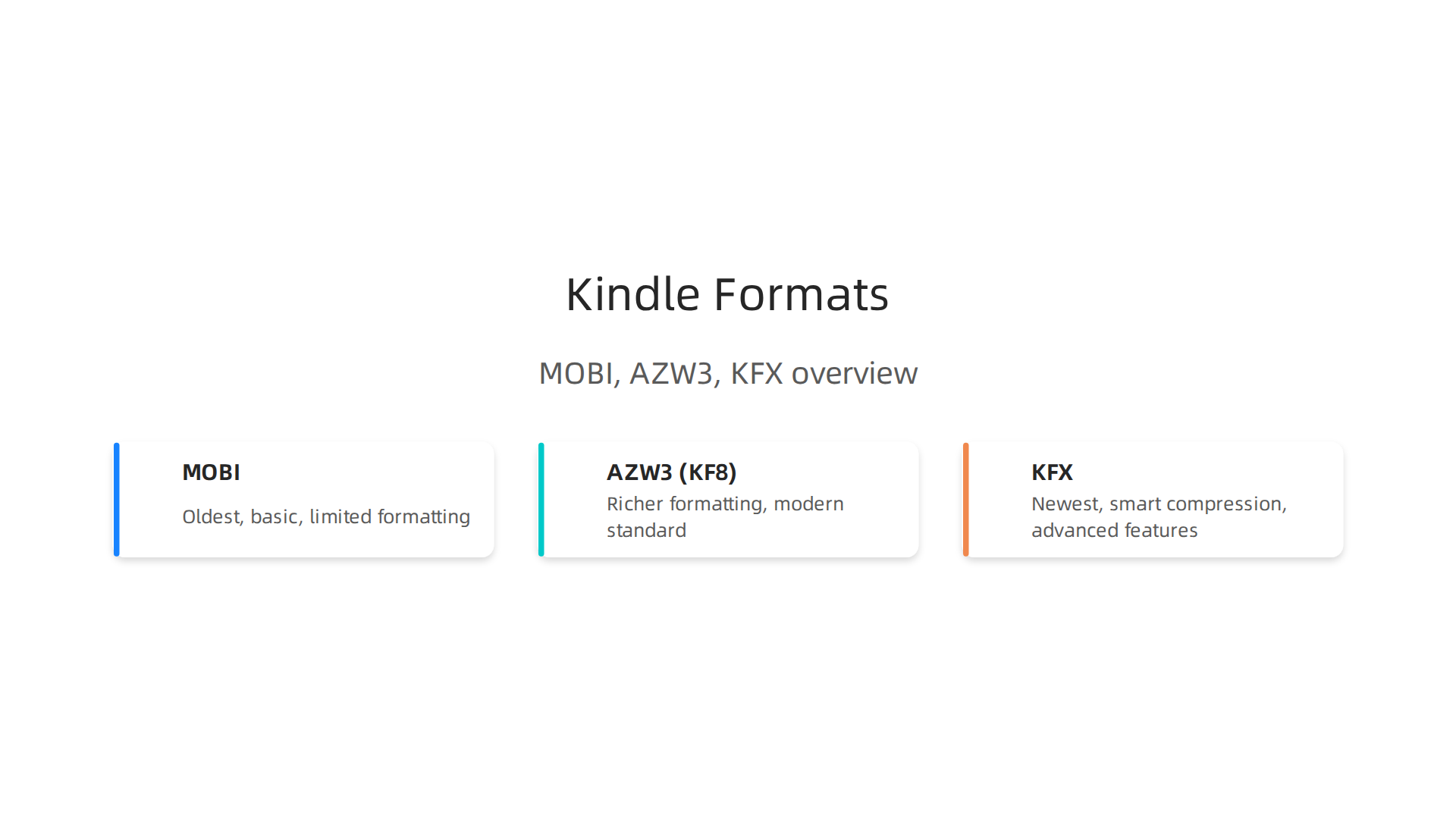
MOBI is the oldest format. It was created for the very first Kindle models way back in 2007. Today, MOBI is still supported on older Kindles, but it has serious limits. It does not handle complex formatting well. You cannot use drop caps, custom fonts, or advanced styling. Images may look rough, and chapter breaks can act strange. For modern publishing, MOBI is the weakest choice. If you send a MOBI file to a new Kindle, the reader will get a basic, boxy experience. Most experts now recommend avoiding MOBI for new books. You can learn more about these Kindle file formats if you want the full history.
AZW3 is the upgrade. Amazon introduced AZW3, also called KF8, around 2011. It was a big leap forward. AZW3 supports richer formatting with more fonts, better image handling, and features like bookmarks and tables of contents. If you have a newer Kindle, like the Paperwhite or the Kindle Basic from recent years, AZW3 will give you a much cleaner, more professional look. Your book will display the way you designed it. This format is now the standard for most self-publishers. It works well for fiction and nonfiction alike. When you understand how to make a book look good on Kindle, AZW3 is your starting point. You can see a detailed comparison of these Kindle content formats to understand exactly what AZW3 supports.
KFX is the newest and most powerful format. Amazon released KFX a few years ago, and it is now the default for modern Kindles. KFX offers smart compression, which makes files smaller without losing quality. That means faster downloads and more room on your device for discount books and your whole library. KFX also supports advanced features like Grade Level Reading, improved typography, and pop-up footnotes. If you want the best possible reading experience, KFX is the way to go. However, older Kindle models cannot handle it. If you own a Kindle from 2015 or earlier, stick with AZW3. According to the complete guide to Kindle in 2026, KFX is now the primary format for new Kindle books.
So which format should you use? If your readers have modern devices, go with KFX. If you want broad compatibility, AZW3 is safer. Avoid MOBI unless you specifically need to support a decade-old device. Getting this choice right is a key part of how to make a book that readers actually enjoy.
And here is a bonus tip. The format you choose affects more than just looks. It also impacts how easy it is to focus while reading. A clean, properly formatted Kindle file keeps the reader in the flow. Distractions from broken text or missing images kill concentration fast. If you want to rebuild your focus while reading on your Kindle, check out this guide on how the Kindle app helps rebuild your attention span. It explains how a smooth reading experience supports deep focus.
Now that you know your formats, you are ready to convert. But before you jump in, take a moment to set yourself up for success. A clear mind makes better publishing decisions. Reclaim your focus and approach the next steps with intention. Your readers will thank you.
2. Top Tools to Convert EPUB to Kindle (Free and Paid)
So you know which format you need. But how do you actually do the conversion? Picking the right tool matters a lot. Some are free and powerful. Others cost money but save you time. And some online options are quick but not always reliable. Here are the best tools to convert EPUB to Kindle in 2026.
Calibre is the gold standard for free. If you want full control over your EPUB to Kindle conversion, Calibre is the tool to use. It is open source, which means it costs nothing. And it runs on Windows, Mac, and Linux. You can import your EPUB, pick your output format like AZW3 or KFX, and tweak almost everything. Want to change font sizes? Adjust margins? Fix broken chapter breaks? Calibre lets you do it. According to the complete EPUB to Kindle conversion guide from Designrr, Calibre is the most popular option for a reason. It handles complex books with images and tables well. The only downside is the learning curve. The interface looks a bit old school. But once you spend ten minutes with it, the process becomes easy. For most self publishers, Calibre is the best starting point. Especially if you are trying to figure out how to make a book that looks professional on any Kindle.
If you want a simpler paid alternative to Calibre, some tools offer a smoother experience. One option is Epubor Ultimate. It is not free, but it makes the process much more straightforward. It has a clean interface and strong customer support. You can read more about how Epubor Ultimate compares to Calibre if ease of use is your priority.
Kindle Previewer is the official Amazon tool. This one is free and comes straight from Amazon. Its job is not just conversion. It also shows you exactly how your book will look on different Kindle devices. You can see your EPUB turn into a KFX file and then preview it on a virtual Kindle Basic, Paperwhite, or Oasis. This is huge for quality control. You catch formatting errors before your readers see them. The tool also follows Amazon’s exact specifications. So your file will be accepted for publishing without issues. According to the guide on Amazon Kindle EPUB support in 2026, the Send to Kindle service still requires conversion behind the scenes. Kindle Previewer handles that conversion perfectly. It is a must have if you are serious about self publishing audio books or text heavy ebooks.
Online converters are fast but risky. Sites like CloudConvert, Zamzar, and Convertio let you upload your EPUB and download a converted file in seconds. No software to install. No accounts required. They work great for simple books with mostly plain text. If you are converting a basic novel or a short guide, an online tool can do the job. The Top 6 eBook Converters in 2026 guide from Mapify mentions that tools like CloudConvert support batch processing, meaning you can convert many files at once. That is useful if you have a whole library of discount books you want to move to your Kindle. But here is the catch. Online converters often struggle with complex formatting. If your EPUB has custom fonts, intricate layouts, or a lot of images, the output may look wrong. Chapter breaks might vanish. Images might shift out of place. For professional work, stick with Calibre or Kindle Previewer. For a quick fix, online tools are fine.
So what should you use? Start with Calibre for full control and customization. Use Kindle Previewer to test your final file. And reach for an online converter only for simple, no fuss jobs. Getting your EPUB to Kindle right the first time saves you headaches later.
And here is something important. A clean conversion does more than just look good. It helps you stay focused while reading. When your book displays correctly, your eyes flow smoothly across the page. You do not get pulled out of the story by weird formatting. That kind of smooth reading helps you rebuild your concentration. If you want to learn how the Kindle app can help you rebuild your attention span, check out that guide. It connects directly to why getting your book right matters.
Once you have your file converted, the next step is getting it onto your device. That is where things get really easy. But before you do that, take a moment to understand the bigger picture of how platform recognition works for authors. The way Amazon sees your book affects how readers find it. For a deeper dive into how recognition systems work, read this piece on Recognition Systems and what they forgot. It explains the dynamics behind author visibility. That knowledge will make your publishing journey smoother.
3. Step-by-Step Guide: Converting EPUB to Kindle Using Calibre
Now that you know why Calibre is the best free tool, let’s walk through the actual steps. Don’t worry, it’s easier than it looks. Once you do it a couple of times, converting your EPUB to Kindle will feel like second nature.

And you will end up with a book that reads perfectly on your Kindle Basic or any other model.
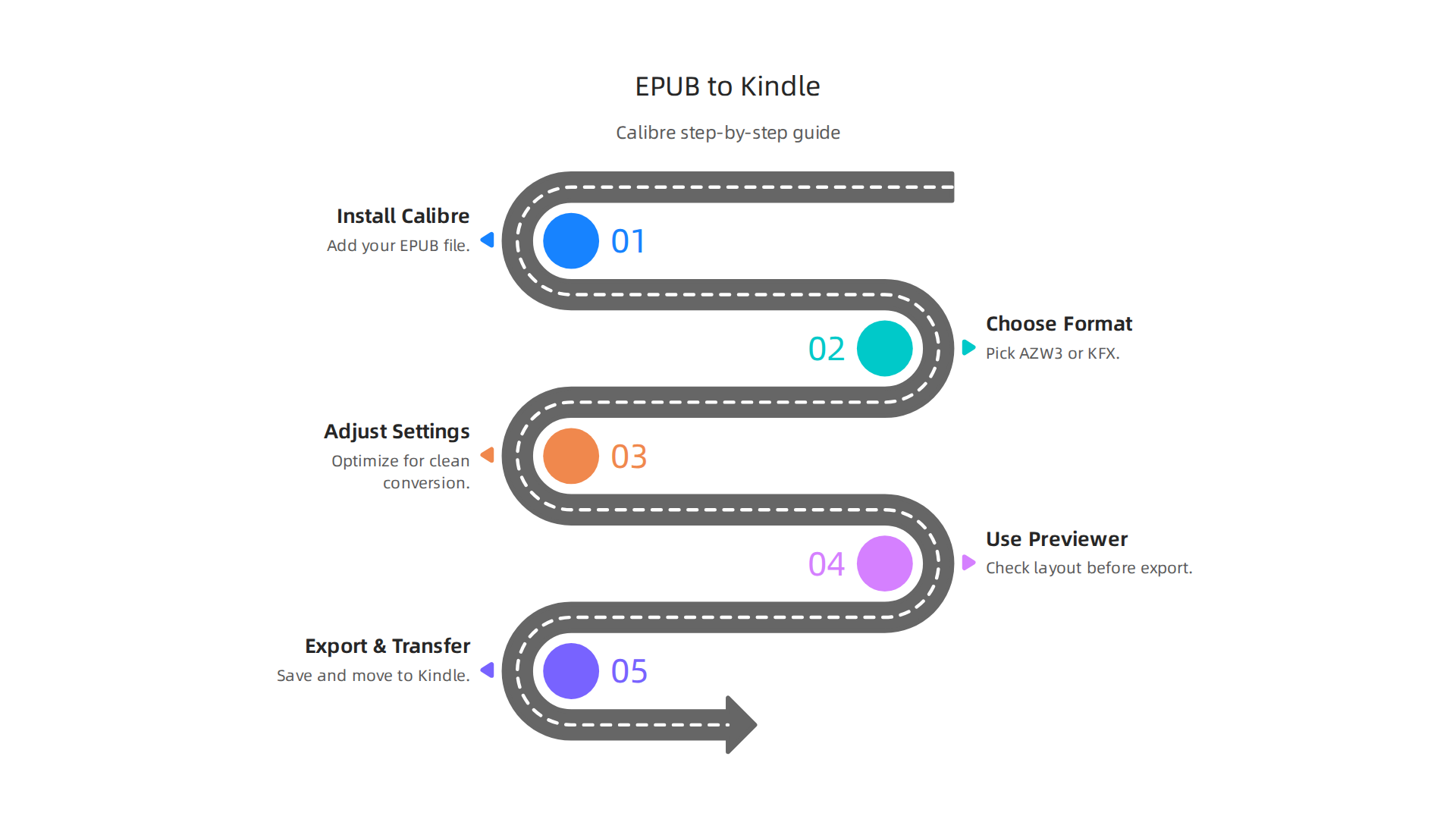
Step 1: Install Calibre and add your EPUB file
Head to the Calibre website and download the version for your computer. It works on Windows, Mac, and Linux. The install is simple. Just follow the prompts. Once it’s open, you will see a big empty library.
Now click the "Add books" button at the top left. Find your EPUB file on your computer and select it. Calibre will add it to your library with a default cover and metadata. You can edit the title, author, and description later. For now, just get the file in.
Step 2: Choose the right output format
Calibre can convert your EPUB into several Kindle-friendly formats. The three main ones are:
- MOBI – Older format. Works on most Kindles but missing some modern features.
- AZW3 – Also called Kindle Format 8. Supports advanced styling like drop caps and embedded fonts. Best for most books.
- KFX – The newest format from Amazon. Offers the best performance and features like enhanced typesetting. Great for a Kindle Basic or Paperwhite.
For the best reading experience in 2026, pick AZW3 or KFX. MOBI is fine for very simple books. To choose, click on your book in the library, then click the "Convert books" button. In the top right corner of the pop-up, there is a dropdown that says "Output format." Pick AZW3 or KFX there.
According to the complete EPUB to Kindle conversion guide from Designrr, most people use AZW3 because it balances compatibility and features. That is a smart starting point.
Step 3: Adjust settings for a clean conversion
Before you hit OK, explore the settings on the left side of the conversion window. You can change:
- Output profile – Tell Calibre which Kindle you have. For a Kindle Basic, select "Kindle Basic." This makes the book fit that screen perfectly.
- Page setup – Adjust margins, line spacing, and font size. Keep defaults unless you know you want something different.
- Look & feel – Change the base font or add a small amount of extra spacing.
- Structure detection – Make sure Calibre correctly identifies chapter breaks. This is important for navigation.
You don’t need to change everything. Most of the time, the defaults work well. But if your original EPUB has weird formatting, tweak these settings to fix it. For example, if images are too small, you can adjust the scaling under "Processing."
Step 4: Use the built-in previewer before final export
This step saves you from headaches later. After conversion, click on the new file in your library. Then click "View" and select "Preview." Calibre shows you exactly how every page will look. Scroll through the whole book. Check chapter titles, images, and paragraph breaks.
If something looks off, go back to the conversion settings and fix it. Then convert again. The previewer is your safety net. Using it means you will not have to redo the process after you transfer the file to your Kindle.
According to the Amazon Kindle EPUB support status from Automateed, Amazon still does not support EPUB natively. So your conversion must be solid. The previewer helps catch mistakes before your readers see them.
Step 5: Export and transfer to your Kindle
Once the preview looks good, right-click on the converted file. Select "Save to disk" and choose a folder. You now have a .azw3 or .kfx file ready.
Transfer it to your Kindle using a USB cable or Amazon’s Send to Kindle service. With USB, just drag the file into the "Documents" folder on your Kindle. With Send to Kindle, you can email the file to your Kindle address or use the desktop app. Both ways work fine.
Bonus tip: Convert multiple books at once
If you have a stack of discount books or freebies from promotions, you can convert them all together. Select multiple EPUBs in your Calibre library by holding Ctrl (or Command on Mac) and clicking each one. Then click "Convert books" and choose "Convert selected books to a common format." Pick your output format and let Calibre do the rest. The Top 6 eBook Converters guide from Mapify mentions that batch processing saves a lot of time. This is especially useful when you are building a library to read on your Kindle Basic.
When your book is cleanly formatted and easy to read, you will stay focused longer. Bad formatting pulls your attention away. A smooth reading experience helps you rebuild your concentration. If you want to dig deeper into how reading on a Kindle can sharpen your focus, check out this guide on how the Kindle app helps you rebuild your focus and attention span. It shows you the connection between a well-set book and deep reading.
And if you are curious about what makes reading so engaging in the first place, there is a fascinating white paper called The Science of Gamification. It breaks down the brain science behind reward and engagement. That knowledge can help you design better reading habits for lasting concentration.
4. Publishing Your Converted Book on Kindle Direct Publishing (KDP)
Once you have a cleanly converted file from Calibre, it is time to share your work with the world.

Kindle Direct Publishing (KDP) is Amazon’s free platform. It lets you publish an ebook or paperback without spending a dime.
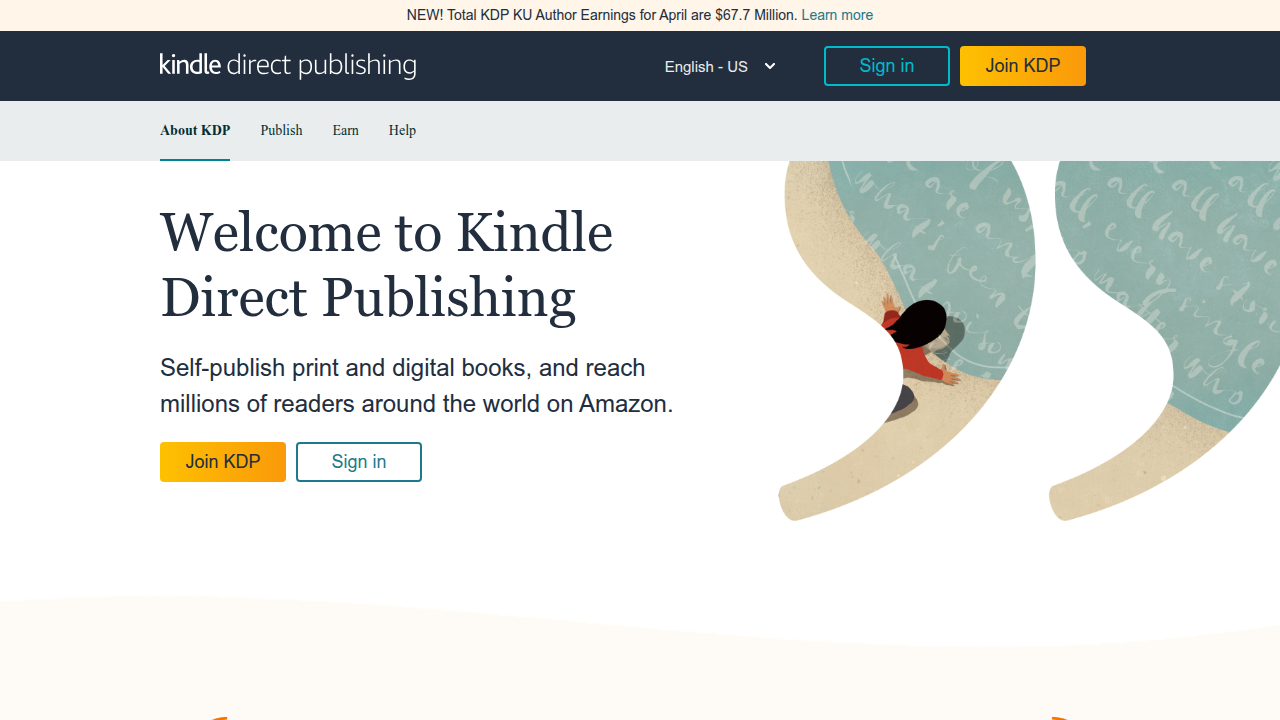
In 2026, KDP is still the easiest way for self-publishers to reach millions of readers. And the process is simpler than you might think.
Step 1: Know which formats KDP accepts
KDP now accepts EPUB files directly. That is great news if you are used to working with EPUB. But many authors still prefer MOBI or AZW3 formats. Both work fine. For the best reading experience on a Kindle Basic or newer model, AZW3 is a solid choice. Before you upload, check the eBook Manuscript Formatting Guide from Amazon KDP to make sure your file meets their rules.
Step 2: Use Kindle Previewer to check your book
Here is the step you should never skip. Download Kindle Previewer from Amazon. This free tool shows you exactly how your book will look on different devices. You can see it on a Kindle Basic, a Paperwhite, or even the Kindle app. It will catch formatting errors that Calibre might miss. Things like missing chapter breaks, weird margins, or broken images.
Open your converted file in Kindle Previewer. Flip through every page. If something looks off, go back to Calibre and fix it. Then convert again. This step saves you from getting negative reviews due to bad formatting.
Step 3: Fill in your book details and set pricing
When you upload your book to KDP, you will need to enter:
- Book title and author name
- Book description
- Categories and keywords – Pick the right ones so readers can find you. For example, if your book is about how to make a book, choose a category like Writing & Publishing.
- Pricing – Choose between a 35% or 70% royalty rate. The 70% rate works for books priced between $2.99 and $9.99. If you want to run promotions like discount books, the 70% plan gives you more options.
For more detailed guidance, the A Guide to Kindle Direct Publishing Guidelines for Indie Authors covers every field you will face. It is worth a quick read before you start.
Step 4: Consider KDP Select for extra visibility
KDP Select is a program where you make your ebook exclusive to Amazon for 90 days. In exchange, you get access to promotional tools. You can run Kindle Countdown Deals or offer your book for free for a limited time. This can be a smart move if you are new and want to build an audience. It can also help if you plan to branch out into self publishing audio books later, because the exposure often carries over.
Step 5: Publish and keep improving
Hit the publish button once everything looks good. Your book will go live on Amazon within 24 to 48 hours. After that, you can track sales, tweak your description, and update your file if needed.
A well-published book is just the start. To help your readers get the most out of it, a clean format supports deeper focus. You can learn more about this connection in our guide on how to rebuild your concentration with a book tracker. It shows you how tracking your reading habits can sharpen your attention.
And if you want to understand how Amazon’s system recognizes your book and recommends it to readers, there is a smart field note on Recognition Systems that explains the mechanics. It is helpful knowledge for any serious author.
So go ahead. Take that epub to kindle file you just made and turn it into a published book. The steps are clear. Your readers are waiting.
5. Optimizing Your Ebook for Kindle Readers: Design and Formatting Tips
You have converted your file and know how to publish it. But the real secret to happy readers is how your book looks on their device. A well-formatted ebook makes reading easy and keeps people turning pages. A poorly formatted one can make them close your book and leave a bad review.
The good news? You do not need to be a designer. You just need a few simple rules. These tips work for any book you make, whether it is fiction, a guide on how to make a book, or a deep nonfiction read.
Use Simple, Clean Formatting
Kindle books reflow to fit screens of all sizes. That means you cannot use fancy layouts with multiple columns or fixed images. The easiest approach is to keep things minimal. Use consistent headings. Make all chapter titles Heading 1 and subheadings Heading 2. This helps your structure stay clean on a kindle basic device and on the Kindle app.
- Use one standard font like Georgia or Palatino. Avoid rare fonts that may not display.
- Use a readable font size. Usually 10 to 12 points is fine.
- Keep line spacing between 1.2 and 1.5. This reduces eye strain.
- Do not use inline formatting like colored text or unusual styles.
For a full breakdown of what works, check out this eBook Formatting Guide 2026 from ISBN Services. It covers best practices for Kindle and Apple Books.
Include a Clickable Table of Contents
Your readers should be able to jump to any chapter with one tap. A clickable table of contents (TOC) is a must. Most conversion tools like Calibre can generate one automatically from your headings. You also need to add a TOC page inside your book, not just the Kindle-generated one.
The Amazon KDP Manuscript Formatting Guide walks you through creating a proper TOC. Also, add hyperlinked cross-references inside your book. For example, if you say "see Chapter 5," make that text a link to Chapter 5. It makes reading feel smooth.
Add Metadata to Make Your Book Discoverable
Formatting is about more than how the book looks. It also affects how readers find it. When you fill in your book details on KDP, you need good metadata: a clear description, the right categories, and smart keywords.
- Choose categories that match your topic. For a book on concentration, pick Self-Help or Health.
- Use keywords that real people type. Think "focus techniques," "productivity tips," or "how to make a book."
- Keep your description short and benefit-focused.
This step ties directly to discoverability. The better your metadata, the easier it is for Amazon to show your book to the right audience. And when your book shows up in searches for discount books or similar terms, you get more eyes on your work.
If you want to understand how platforms use AI and patents to handle content like metadata, this analysis of Meta’s patent on dead or paused accounts gives a fascinating look behind the scenes. The same kind of technology influences how Amazon’s system reads your book.
Test Your Design on Multiple Devices
Even with great formatting, something can look off on a smaller screen. Use Kindle Previewer (free from Amazon) to test your book on a kindle basic, a Paperwhite, and the Kindle app.

Pay attention to chapter breaks, image placement, and how your TOC works.
A clean design helps readers stay focused. The less they struggle with formatting, the more they absorb your content. That is good for their concentration and for your reputation as an author.
6. Troubleshooting Common Conversion Issues
Even after you have formatted your book perfectly, problems can show up during the epub to kindle conversion. These issues are common, but they are also easy to fix. Here are the three most frequent problems and exactly how to solve them.
Missing Images or Broken Links
This is the top problem for anyone learning how to make a book. Your images disappear or your links stop working. The fix is straightforward. Make sure all images are embedded directly inside the EPUB file. Do not link to images on your computer. Use relative file paths. For internal links inside your book, verify they point to real headings or anchors. The EPUB format is the most widely supported ebook format, according to the Comparison of e-book formats on Wikipedia. When you convert from EPUB to Kindle, embedded files travel cleanly. External links break.
Font Not Rendering
You chose a beautiful font. But on a Kindle basic device, it shows up as plain text. Why? Kindle devices only support a small set of standard fonts. Stick with safe choices like Georgia or Palatino. Avoid special characters and rare fonts. The KFX format used by newer Kindles does support smarter compression and better style options, but it still cannot handle every font. Keep it simple.
Table of Contents Not Working
A broken table of contents frustrates readers fast. They tap a chapter and nothing happens. The problem usually starts in your source EPUB. Open your file. Check that every chapter heading is tagged as Heading 1. Then regenerate the TOC inside your conversion tool. Each Kindle format handles features like the TOC differently. The Kindle File Formats guide from Adobe explains these differences clearly. Always test your TOC on a real device or with Kindle Previewer before you publish.
If you want to build a stronger reading habit that helps you focus better, check out how a book tracker can rebuild your concentration.
A clean epub to kindle conversion means fewer problems and happier readers. If distractions keep you from finishing your book, Reclaim Your Focus and complete your project with clarity.
Summary
This article is a practical guide to converting EPUB files into Kindle-friendly formats so your ebook looks professional and reads smoothly on modern devices. It explains the differences between MOBI, AZW3 and KFX, recommends tools (free and paid) such as Calibre and Kindle Previewer, and gives a clear step‑by‑step Calibre workflow including settings, previewing, and transferring files to a Kindle. You’ll also learn how to publish on Kindle Direct Publishing, choose the right format for compatibility or advanced features, and apply formatting tips—like a clickable table of contents and safe fonts—to improve discoverability and reader focus. The guide covers common problems (missing images, font issues, broken TOC) and fixes so you can avoid glitches that disrupt reading flow. By following these steps you’ll be able to convert, test, publish, and optimize ebooks that keep readers engaged and reduce formatting complaints.